As part of strengthening an Active Directory Domain Services (AD DS) environment, this lab demonstrates how to add an additional domain controller to an existing Windows Server domain using Hyper-V. Active Directory uses multi-master replication for most directory changes, so “additional” is more accurate than implying a permanently primary/secondary relationship.
The objective is to introduce redundancy, replication, and improved availability, which reflects standard enterprise Active Directory deployments.
Lab Prerequisites
Before starting this lab, ensure the following are already in place:
- A primary Domain Controller with a static IP address
- Active Directory Domain Services installed and functional
- DNS running on the primary DC
- Hyper-V virtual networking correctly configured
- A healthy existing DC with current system-state backup
- Successful
dcdiagand DNS checks on the existing domain - A planned static IP, server name, AD site, and DNS-client configuration for the new DC
- Network connectivity for DNS, Kerberos, LDAP, SMB, RPC endpoint mapping, and dynamic RPC ports
Previous labs referenced:
Lab Objective
To deploy and configure a secondary Domain Controller that:
- Joins an existing domain
- Replicates Active Directory and DNS data
- Provides fault tolerance for authentication services
Step-by-Step Lab Tasks
Step 1: Prepare the Secondary Domain Controller
- Deploy a new Windows Server virtual machine on Hyper-V
- Assign networking using the same virtual switch as the primary DC
- Join the VM to the existing domain
Before promotion, point the new server's DNS client to an existing DNS-hosting domain controller for this domain. Don't point it to a public resolver or to itself before inbound and outbound replication are verified.
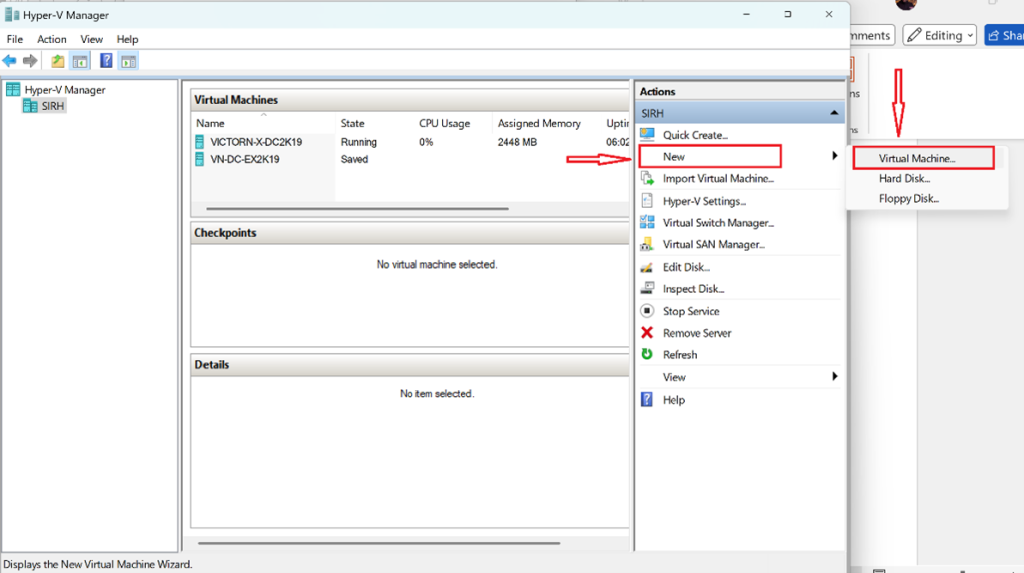
Right-click on your host → New → Virtual Machine
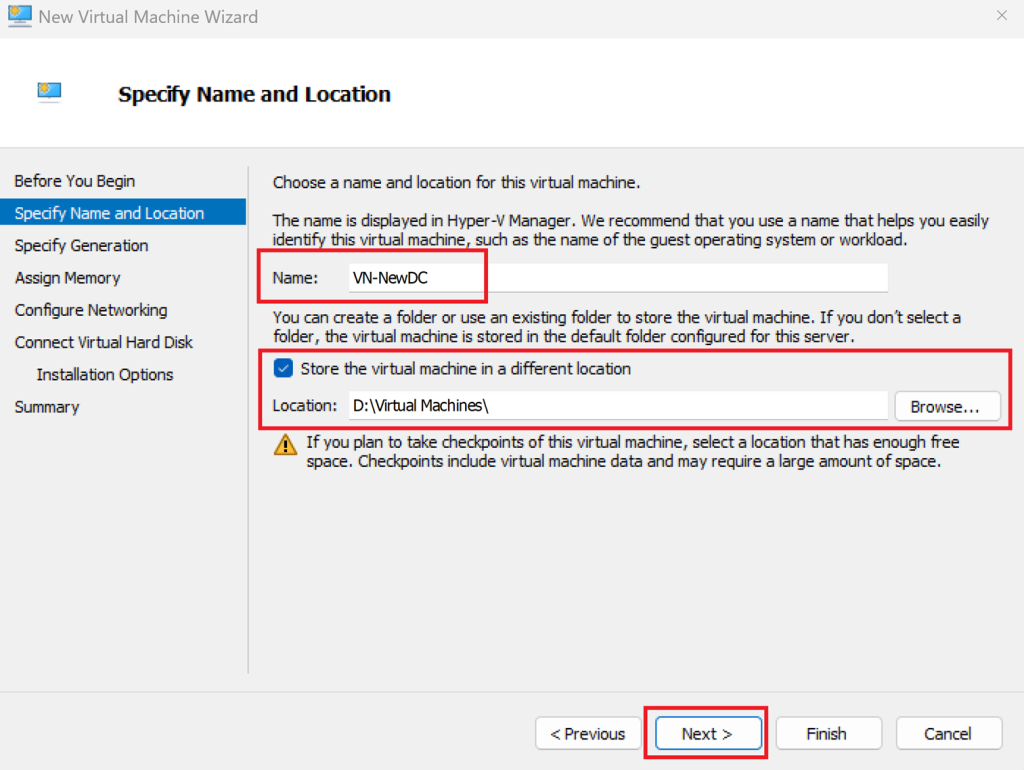
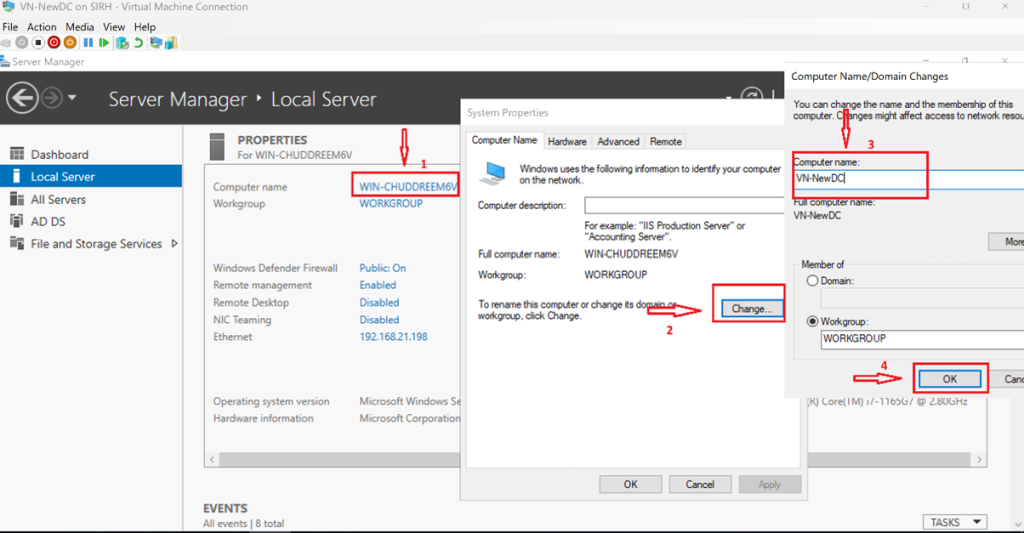
Name your VM (e.g., “VN-NewDC”)
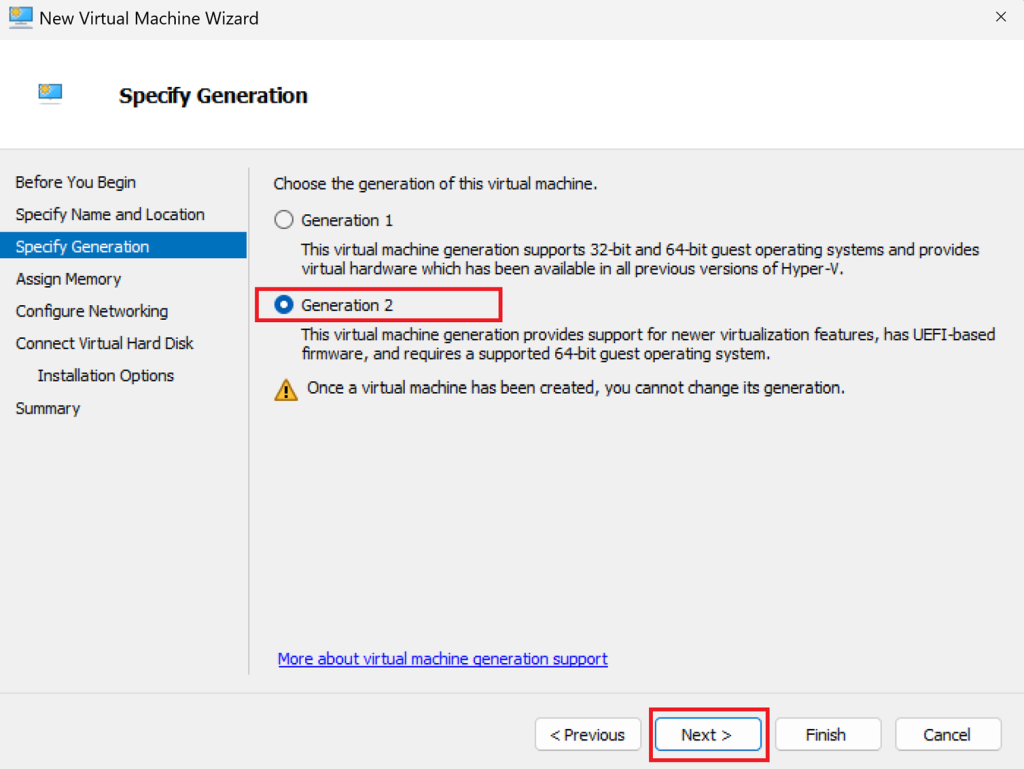
Choose Generation 2
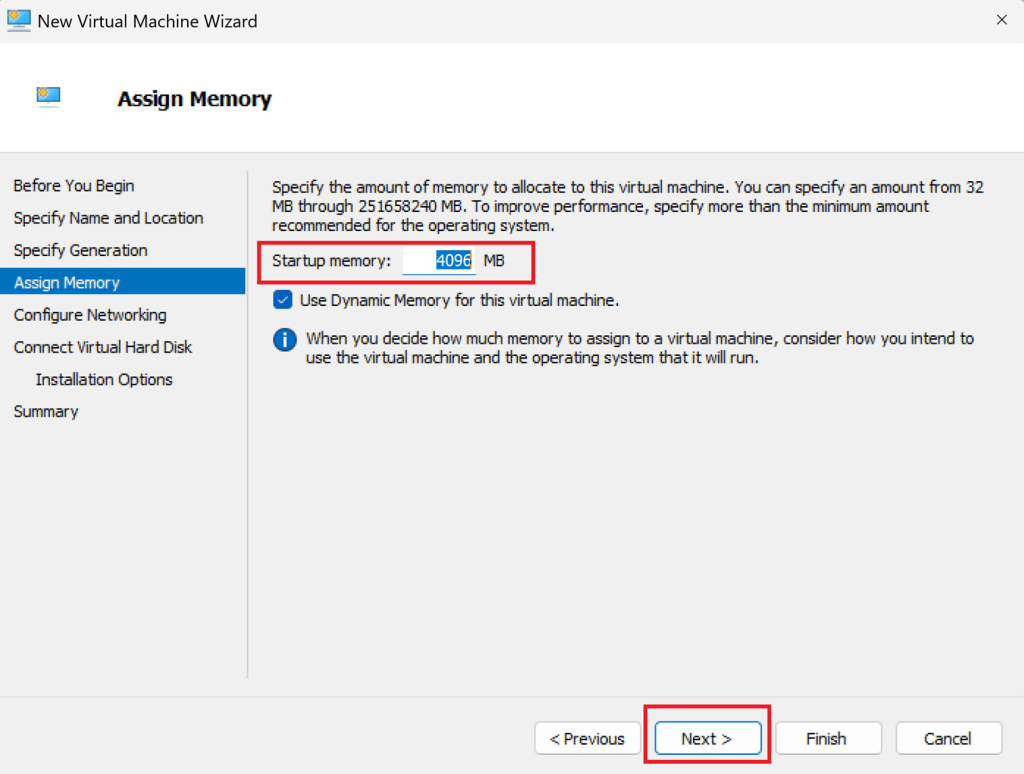
Assign Memory (start with 4 GB)
Select the virtual switch you created and make sure it’s the same as the primary DC
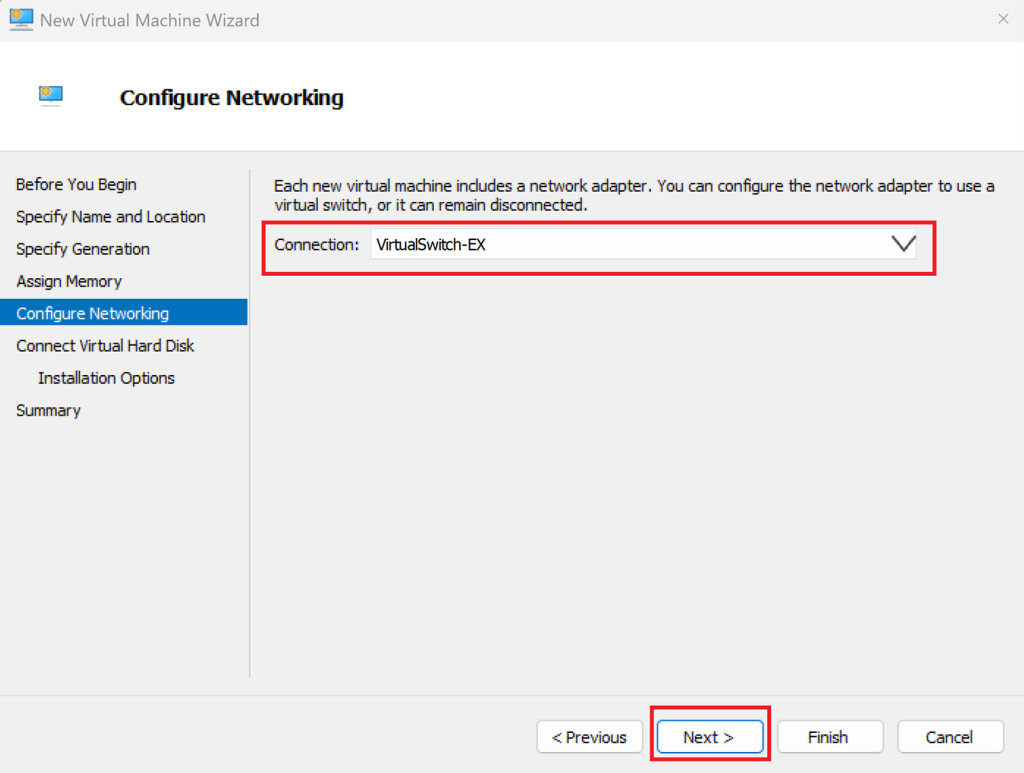
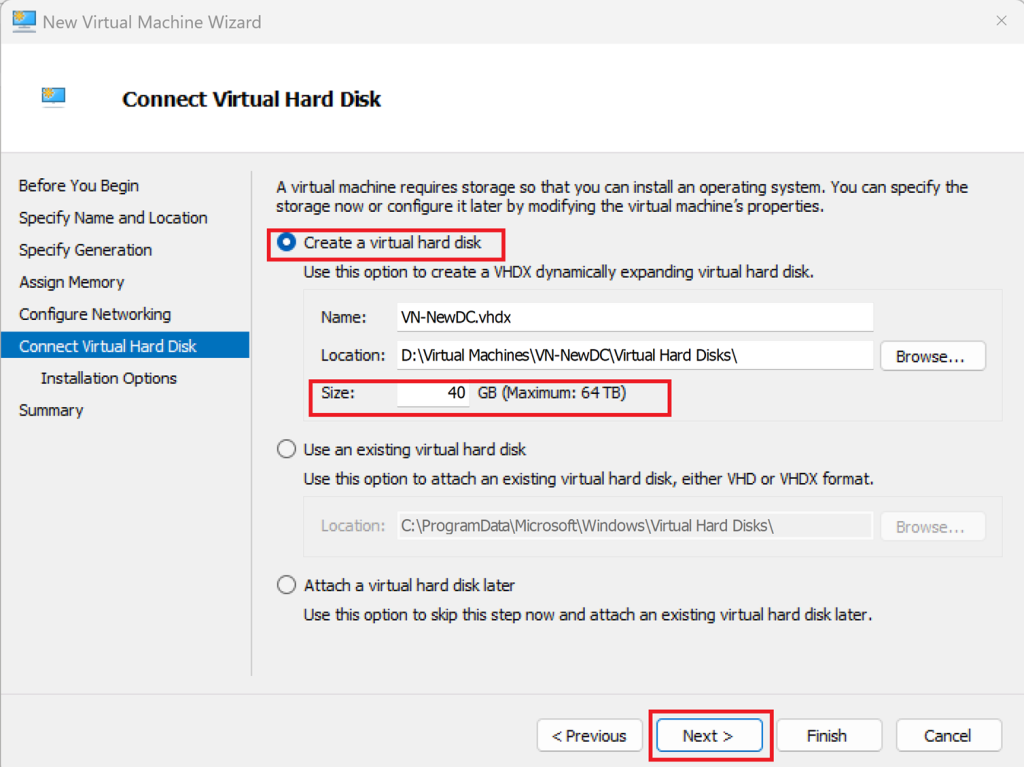
I create a new virtual hard disk (e.g., 40GB or above )
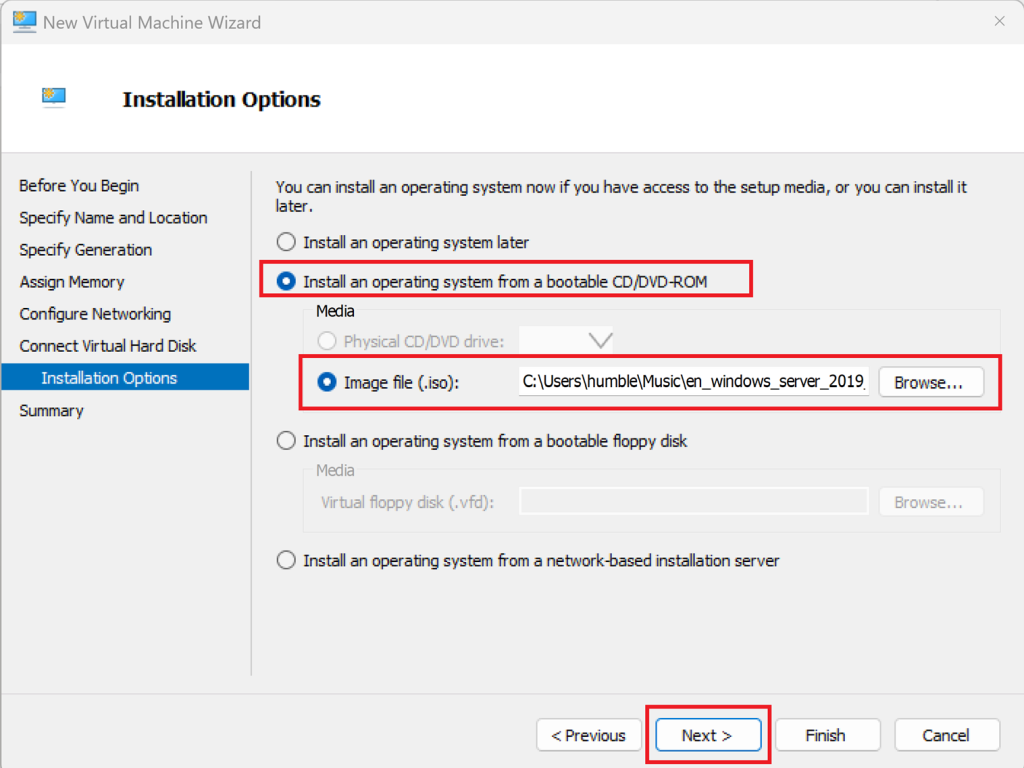
Install an operating system (OS), choose a Windows Server ISO
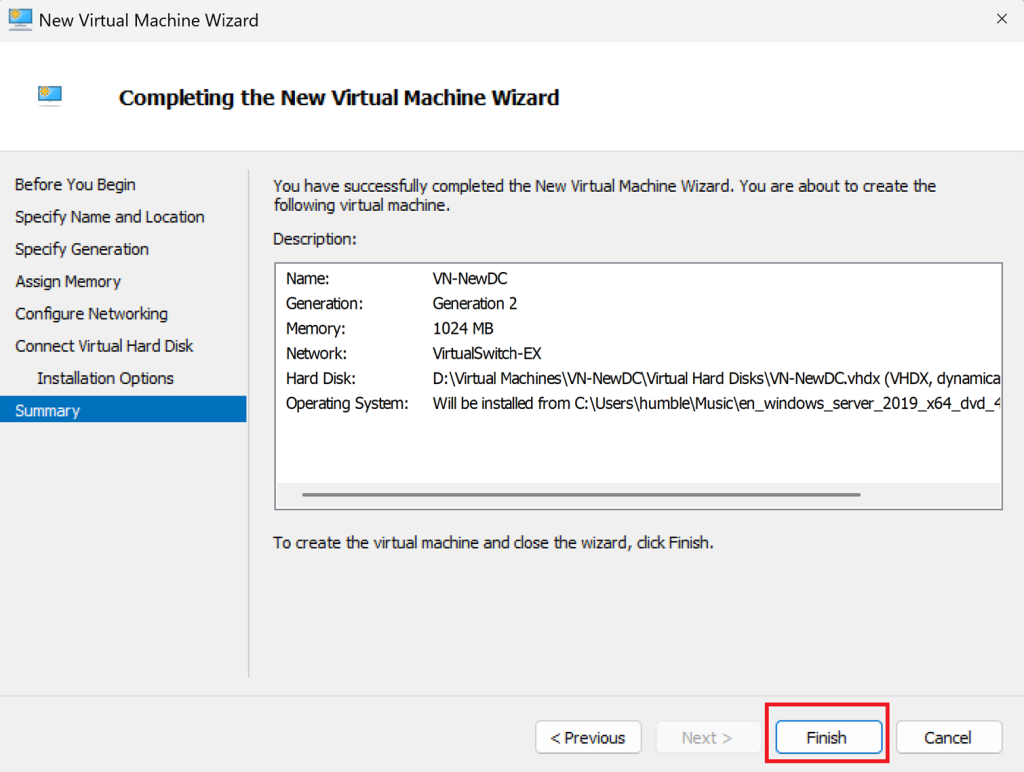
I check the summary, and select Finish
I start the VM → Open the console → Follow the Windows setup wizard
Choose edition, set password, etc.
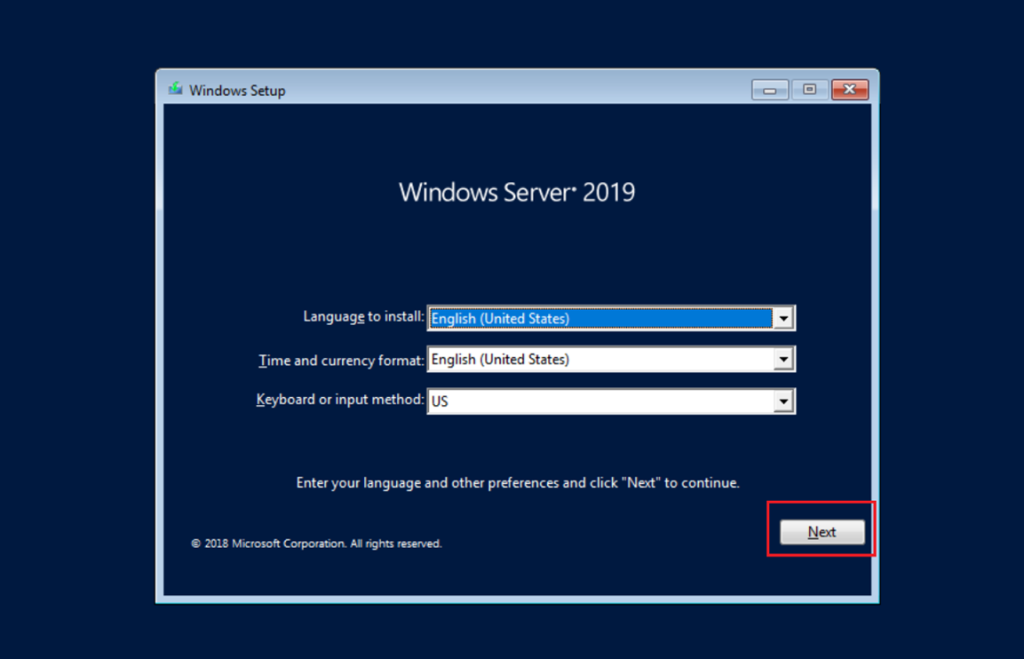
Step 2: Set a static IP
Open the Local Server → Ethernet → Properties
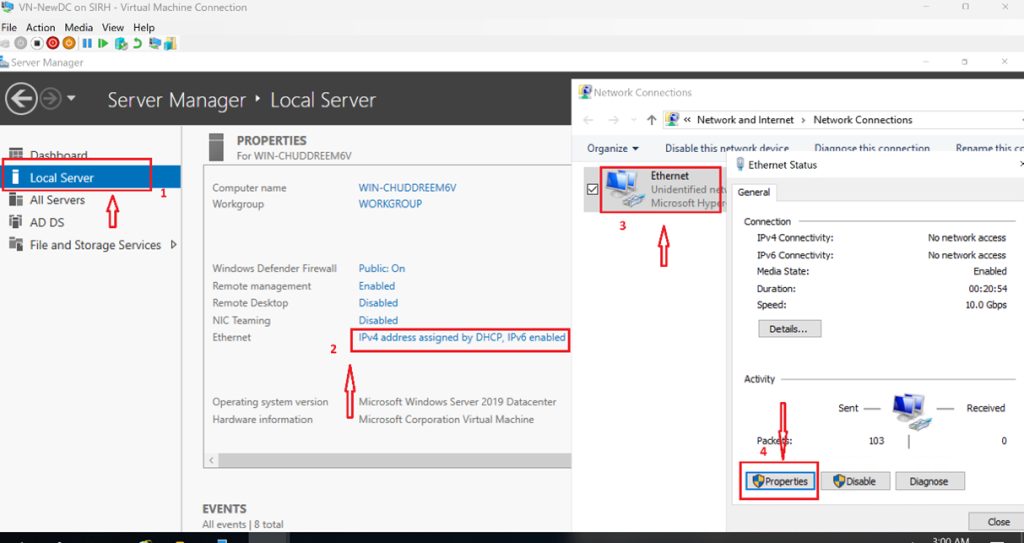
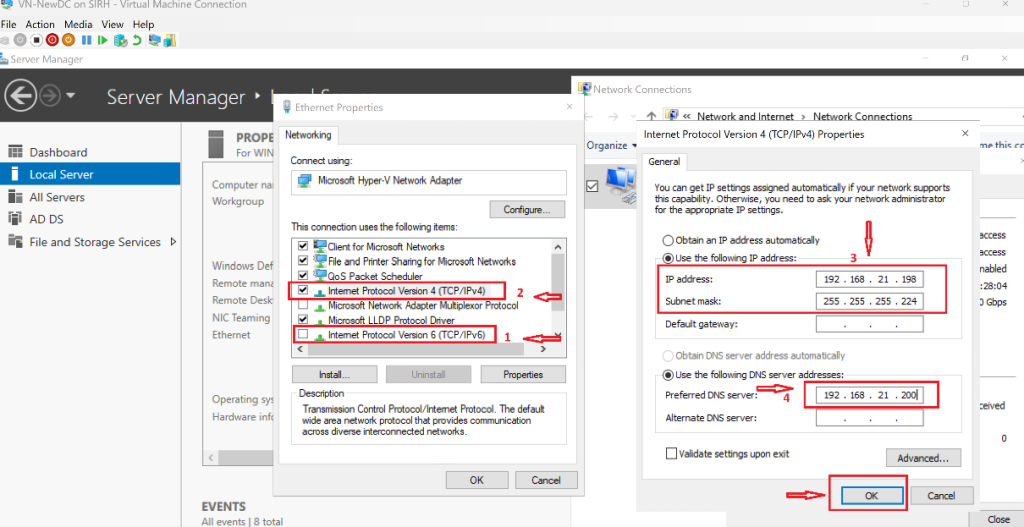
Double-click on IPv4 → Set a static IP address: input your IP address, subnet mask, default gateway, and preferred DNS server. Leave IPv6 enabled unless your lab documents a tested reason to disable it.
Rename the server, and reboot when prompted.
Open Command Prompt
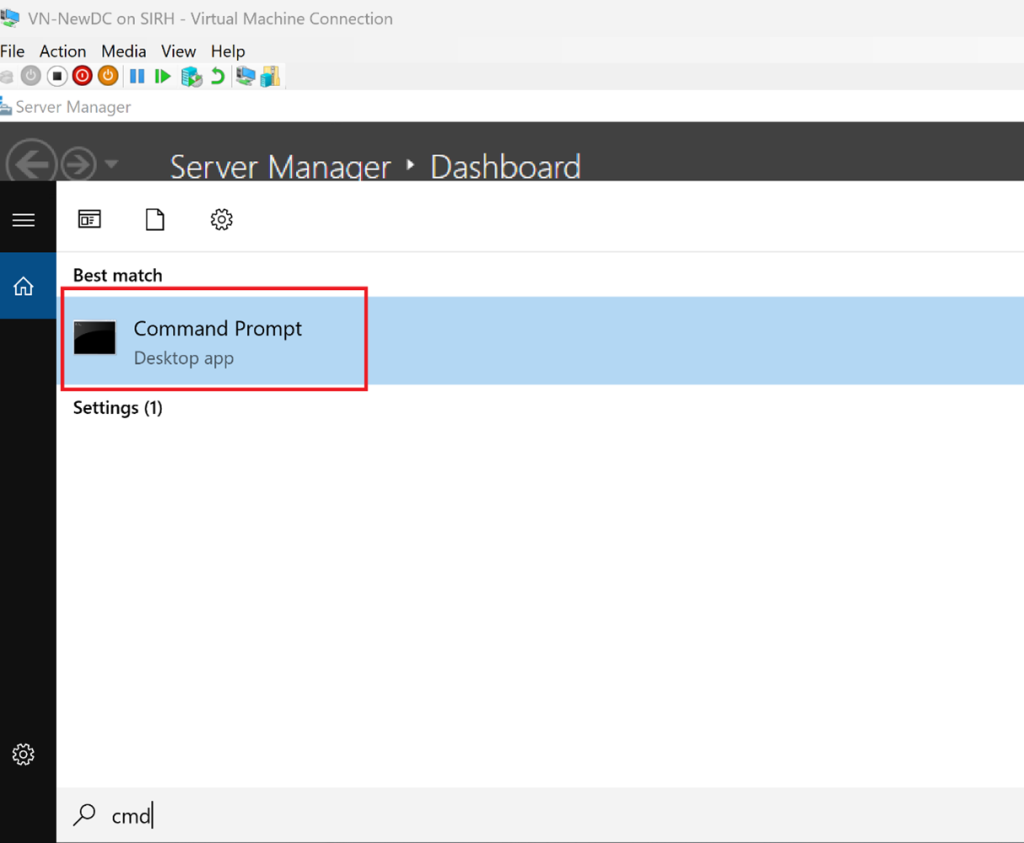
Resolve the existing DC by FQDN and test required services. Ping alone doesn't prove that DNS, LDAP, Kerberos, SMB, or RPC works.
Resolve-DnsName '<existing-dc-fqdn>'
Test-NetConnection '<existing-dc-fqdn>' -Port 53
Test-NetConnection '<existing-dc-fqdn>' -Port 389
Test-NetConnection '<existing-dc-fqdn>' -Port 445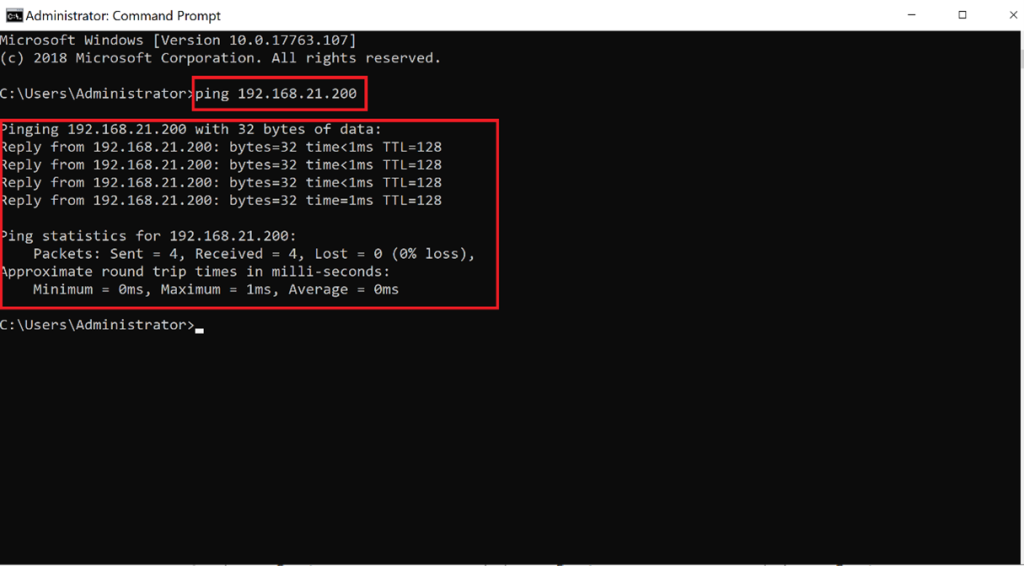
Step 3: Install Active Directory Domain Services
- I add the AD DS role on the secondary server
- I do not create a new forest or domain at this stage
Open Server Manager → Add Roles and Features
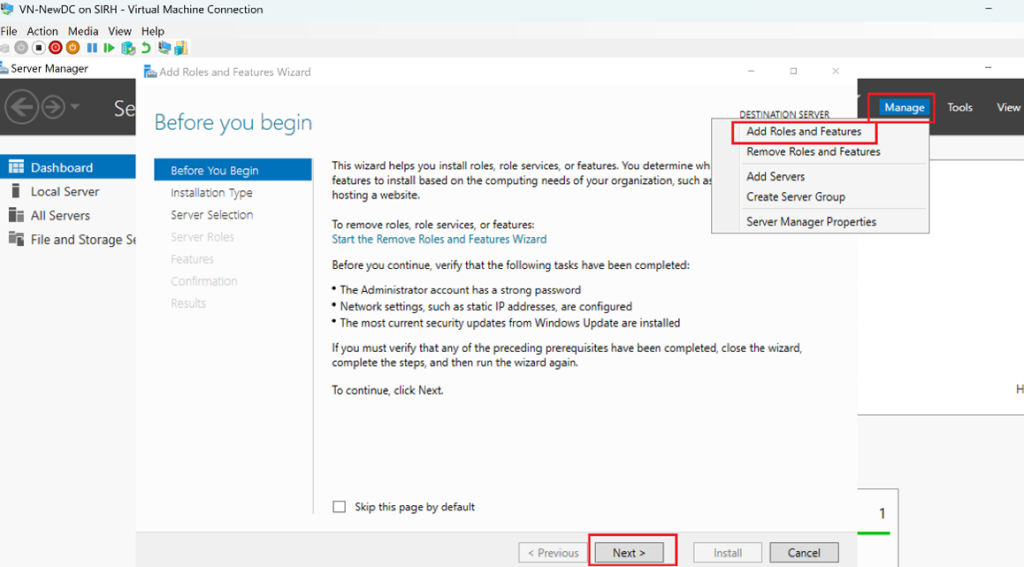
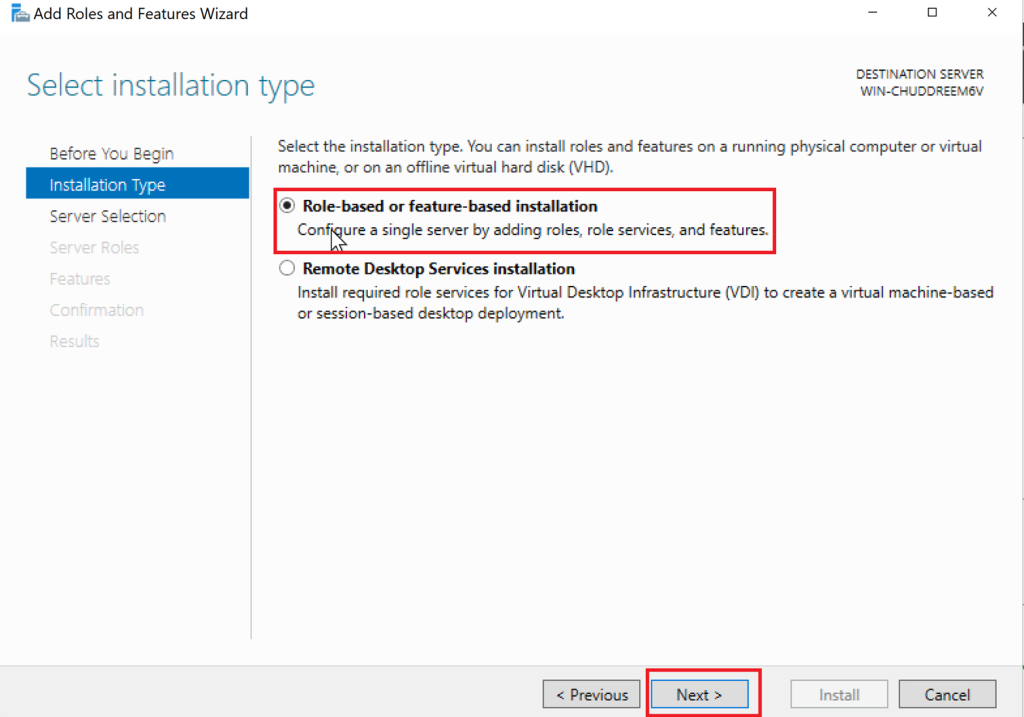
Select Active Directory Domain Services → Next → Next → Install
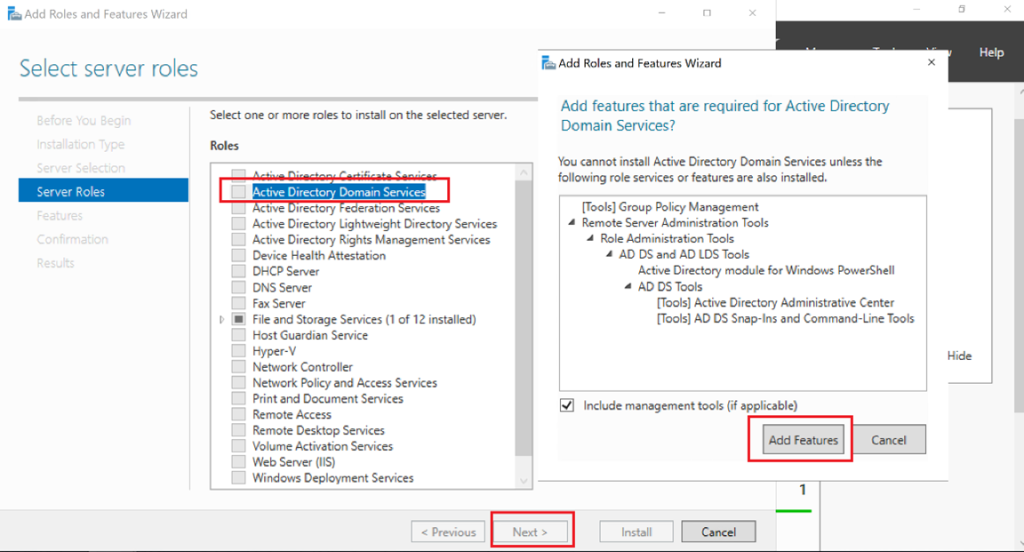
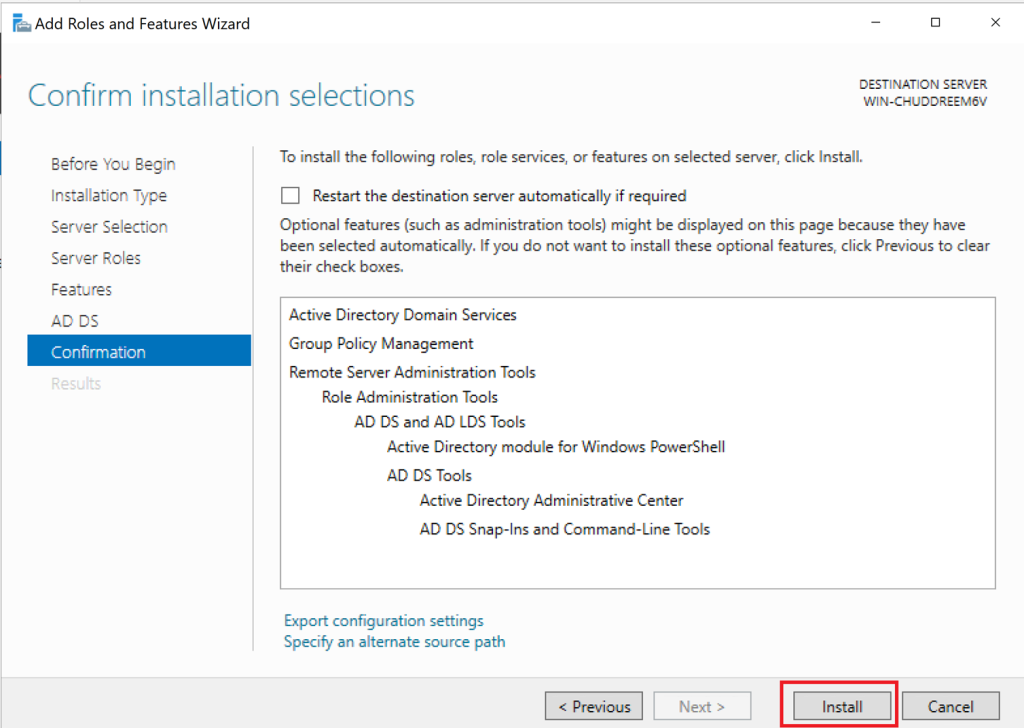
Step 4: Promote the Server to a Domain Controller
- Promote the server as an additional domain controller
- I use existing domain credentials
- Install DNS when prompted (recommended)
After Installation, click Promote this server to a domain controller
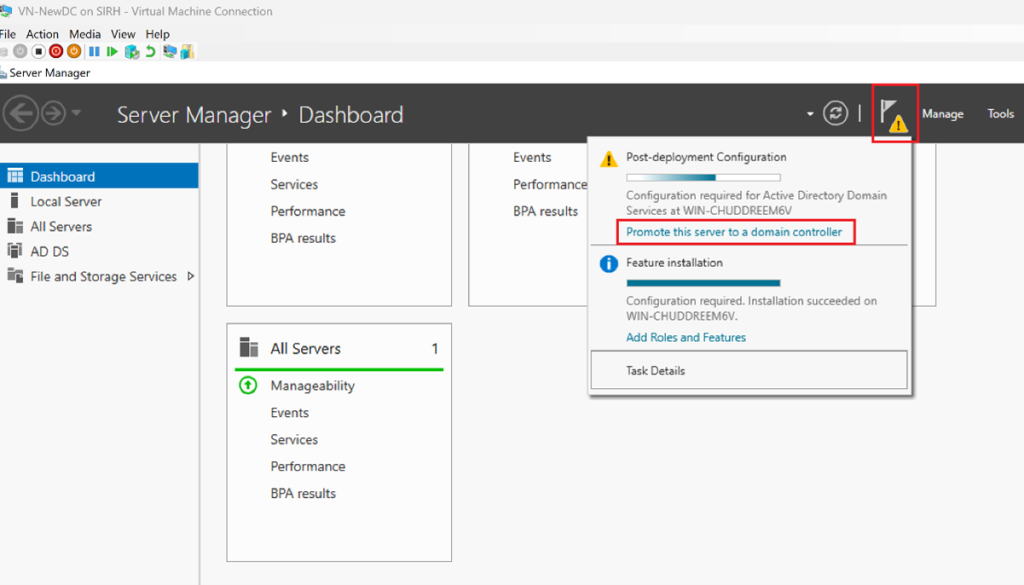
Select Add a domain controller to an existing domain
Provide Domain Admin credentials
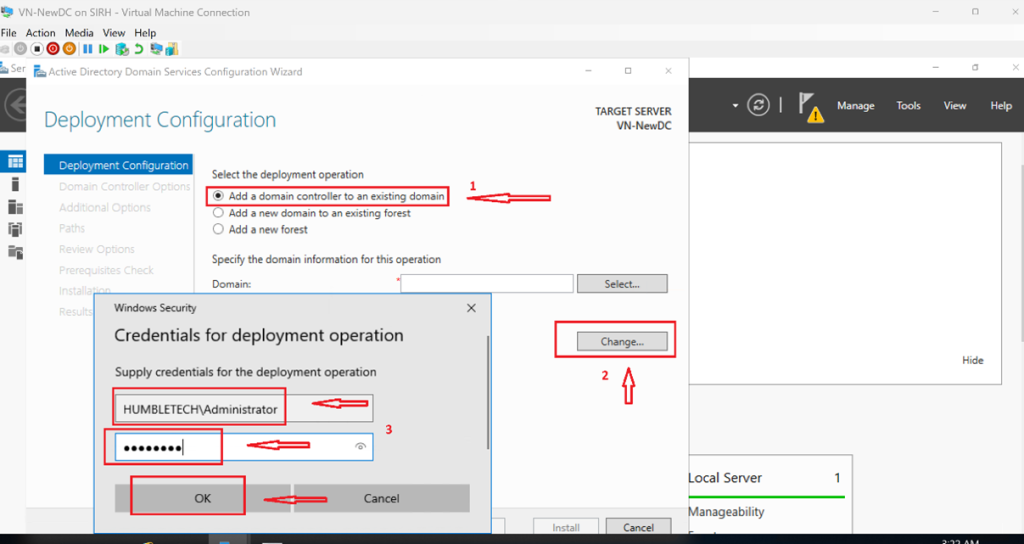
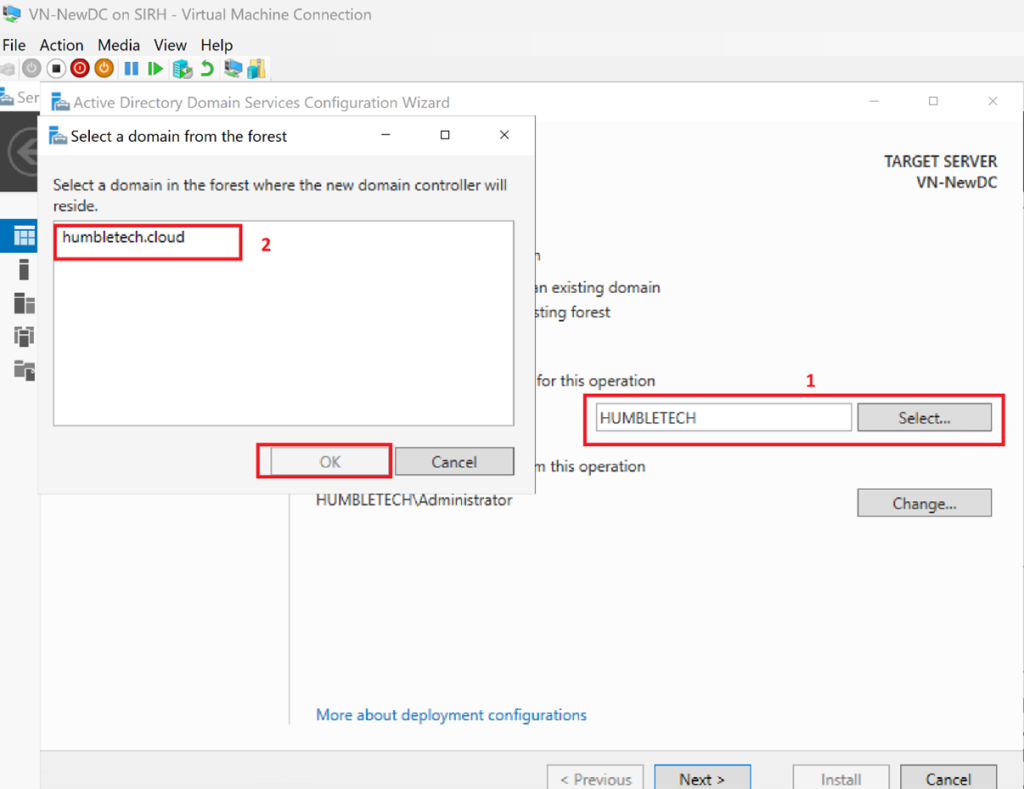
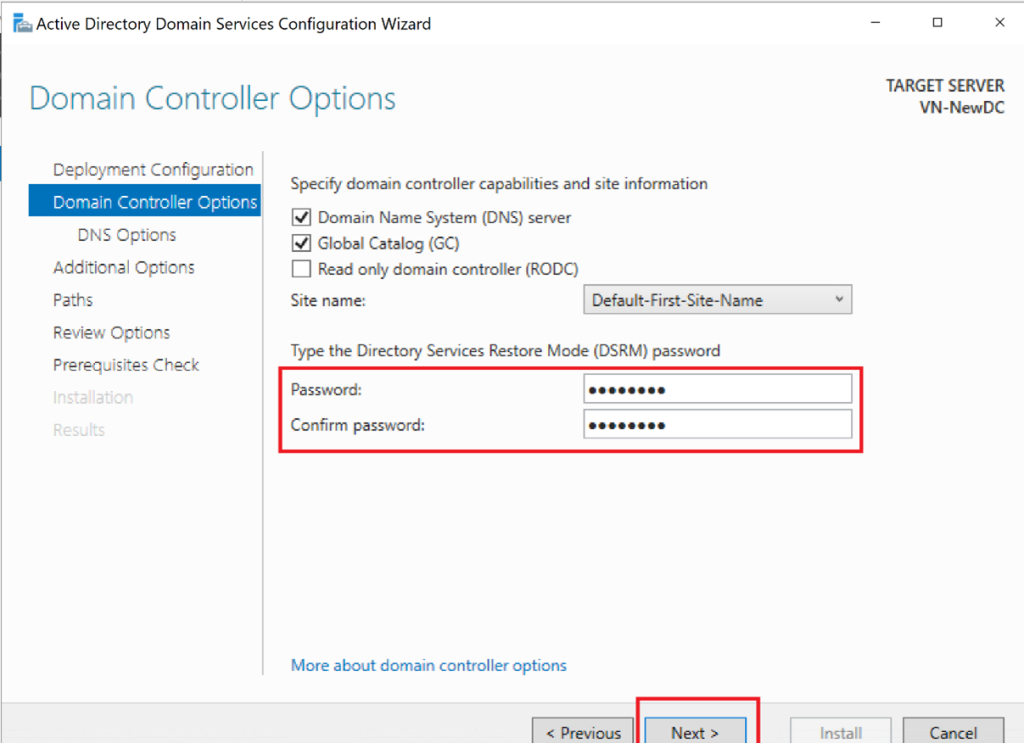
Choose DNS and Global Catalog (GC) → Set the password → Click Next and Install
Step 5: Verify Replication and DNS
- Confirm the new DC appears in Active Directory Users and Computers
- Validate replication using built-in tools
- Ensure DNS records are present and synchronized
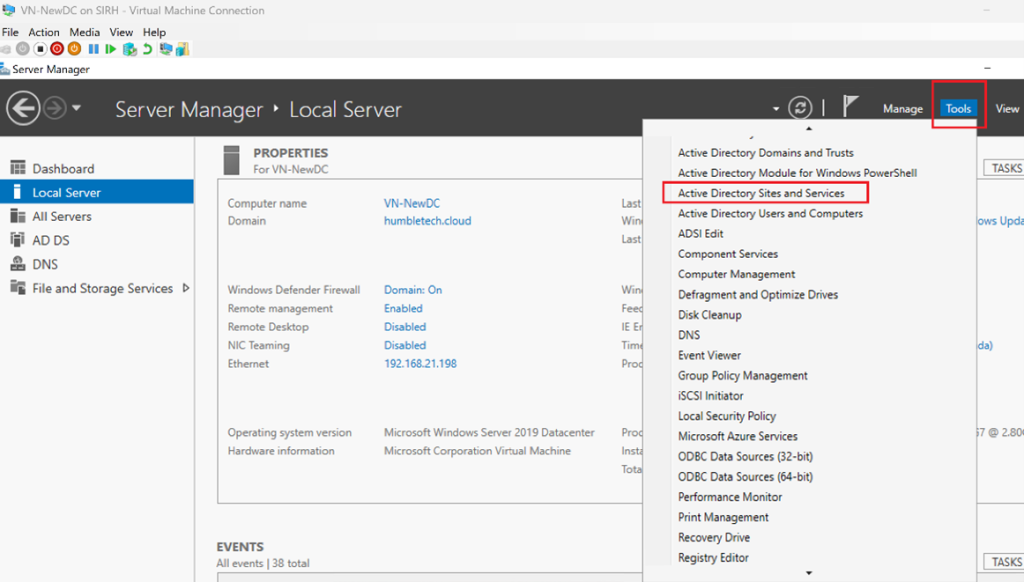
Open Active Directory Sites and Services
Expand Sites → Default-First-Site-Name → Servers
I verify that the new DC appears under the domain
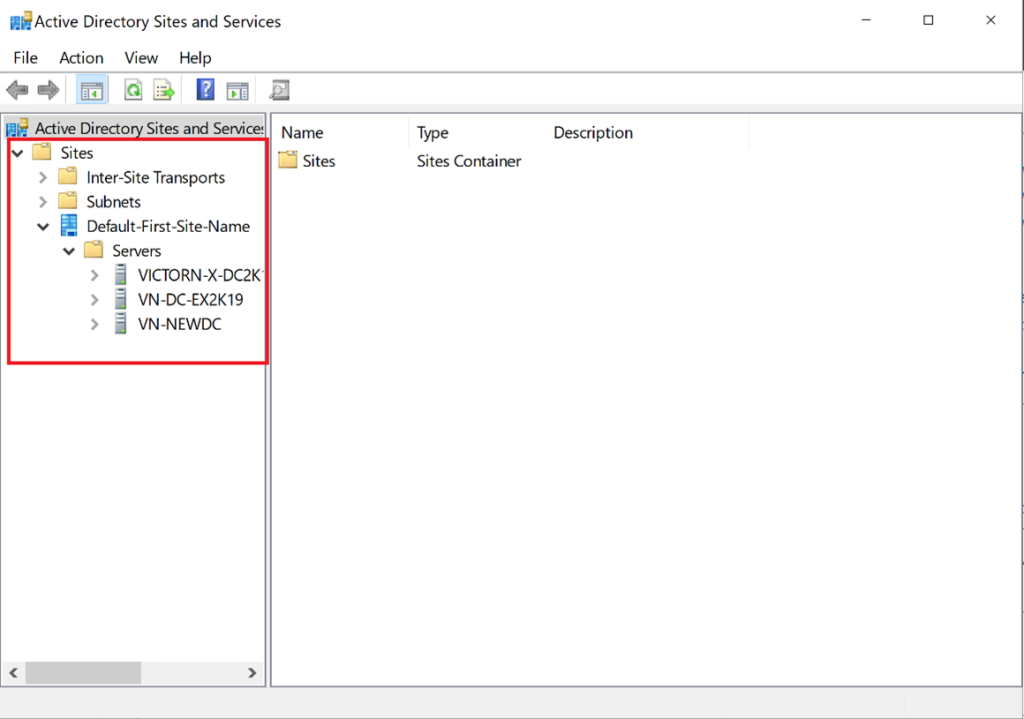
Viewing copied objects is a useful visual check, but it isn't enough to establish replication health. I run the directory diagnostics on both domain controllers:
dcdiag /e /v
dcdiag /test:dns /e /v
repadmin /replsummary
repadmin /showrepl * /csv
Confirm:
repadmin /replsummaryreports no unexplained failures or excessive replication latency.- Inbound and outbound naming contexts appear under
repadmin /showrepl. - The new DC has host, LDAP, Kerberos, and global-catalog DNS records.
SYSVOLandNETLOGONare shared on the new DC.- A test object created on each DC appears on the other after replication.
- Clients can discover both domain controllers through DNS.
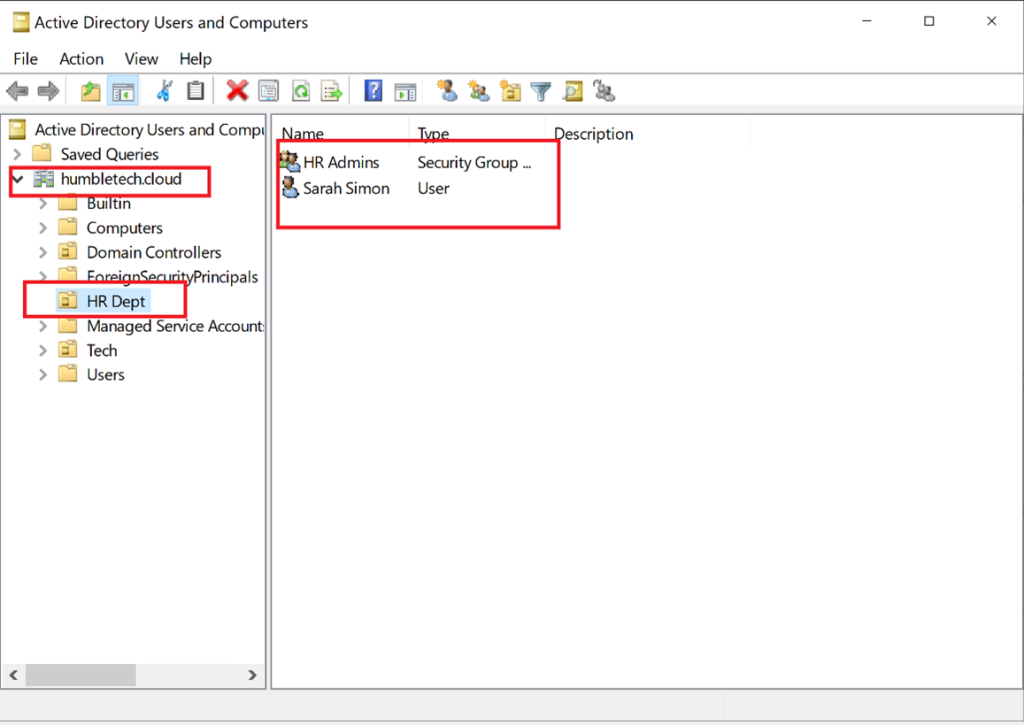
Congratulations! You have successfully added a secondary domain controller on Windows Server using Hyper-V
Why Add a Secondary Domain Controller?
Redundancy
Maintains authentication and directory services if the primary DC becomes unavailable.
Load Distribution
Client authentication and directory queries are handled by multiple domain controllers, improving responsiveness and resilience.
Replication
Active Directory objects and DNS data are automatically synchronized between domain controllers, ensuring consistency.
Multiple domain controllers reduce the single-server risk, but they don't replace backup. Replication can also distribute accidental deletion, corruption, or malicious changes.
Why This Lab Matters
Adding a secondary Domain Controller:
- Eliminates single points of failure
- Improves service availability
- Reflects real-world enterprise and hybrid identity architectures
Production placement depends on sites, network links, failure domains, physical security, DNS availability, and recovery requirements. Two DCs on the same unprotected host or storage system still share a failure domain.
Lab Outcome
By the end of this lab, you will have:
- A functioning secondary Domain Controller
- Active Directory and DNS replication enabled
- A more resilient and production-aligned AD environment
Post-Deployment Operations
- After replication is healthy, configure each DC's preferred and alternate DNS servers according to Microsoft's DNS-client guidance; avoid creating a DNS island.
- Define AD Sites and Subnets so clients locate an appropriate domain controller.
- I verify time hierarchy and the PDC emulator's authoritative time source.
- Confirm both DCs are included in monitoring, patching, endpoint protection, and AD-aware system-state backup.
- I test authentication and DNS after intentionally shutting down one DC, then restore normal service and confirm replication convergence.
- Document FSMO role holders; don't move roles merely because a second DC now exists.
Continue by joining a Windows client to the domain and using it to validate DNS discovery, authentication, and Group Policy while either DC is unavailable.