Active Directory Domain Services (AD DS) remains one of the most essential building blocks in enterprise IT. Whether you're managing on‑prem infrastructure, hybrid cloud environments, or lab setups, understanding how to deploy and configure AD DS is a core skill for any cloud infrastructure or systems engineer.
This lab builds on the Windows Server Hyper-V and static IP guide. It creates the first domain controller in a new forest. One VM is enough for learning, but it isn't a scalable, highly available, or production-ready directory by itself.
Plan the Forest Before Installing It
Forest and domain names are difficult to change later, so don't invent the namespace during the promotion wizard. Prefer a stable subdomain of a DNS name the organization owns, such as ad.example.com, and verify it won't conflict with existing internal or public DNS.
The original screenshots use sirhumble.store, while some later labs use humbletech.cloud. Treat those names as historical lab examples; choose one owned lab namespace and use it consistently across domain controllers, clients, DNS, certificates, and scripts.
Before promotion, confirm:
- The server has a final, meaningful computer name.
- IPv4 is static and excluded from any DHCP pool.
- IPv6 remains enabled unless Microsoft-supported troubleshooting requires otherwise.
- The DNS client points to the correct internal DNS design. For the first DC that will host DNS, configure it to use its own static IP.
- The server is patched, its clock and time zone are correct, and a tested backup/recovery plan exists.
- The forest/domain functional levels and supported Windows Server versions match the environment.
- The Directory Services Restore Mode (DSRM) password will be stored in an approved password vault.
Step-by-Step Installation
1. Install the AD DS Role
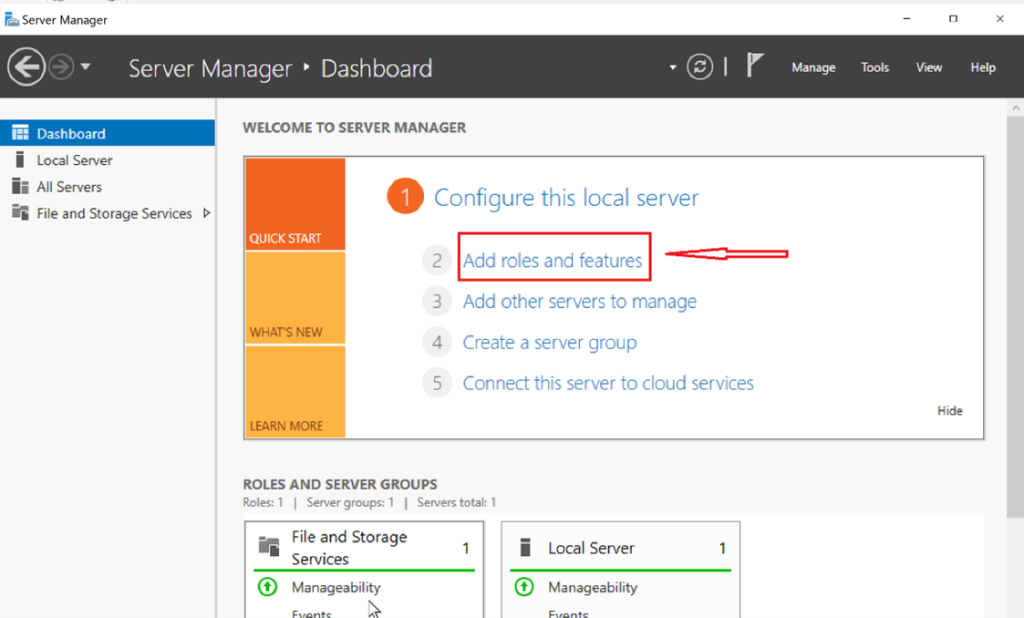
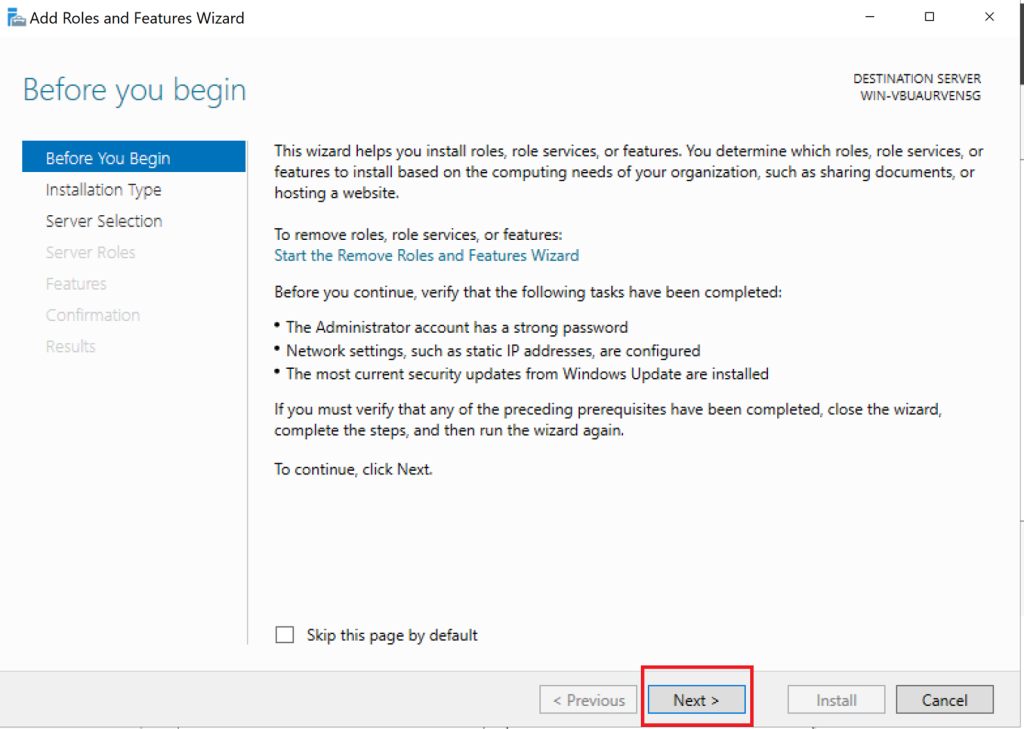
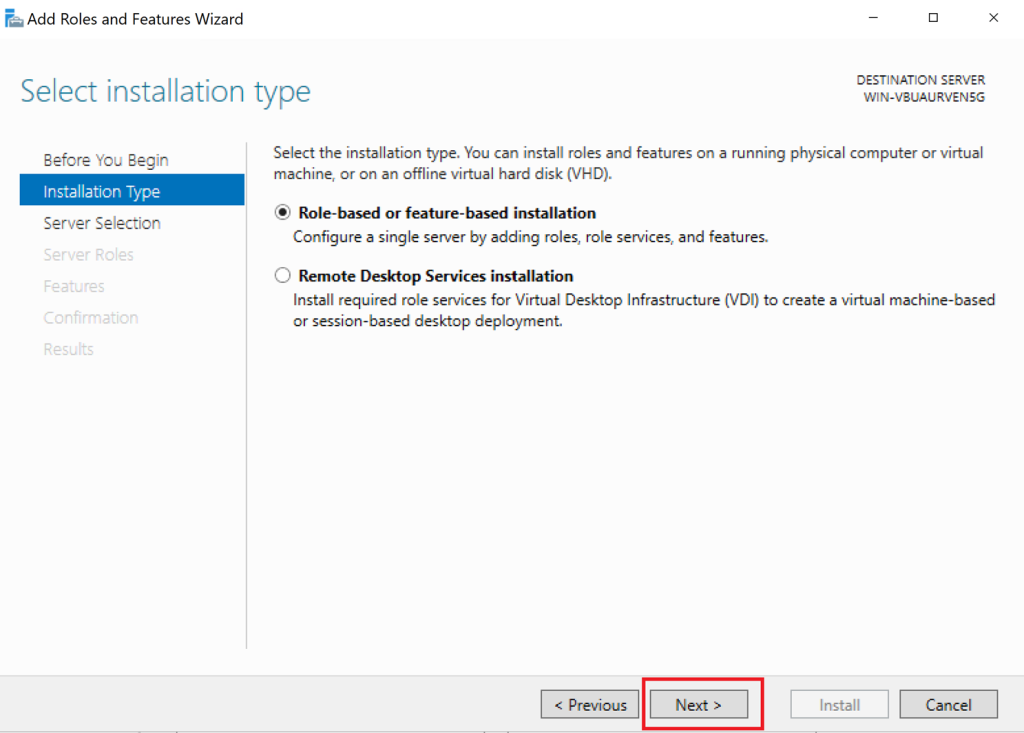
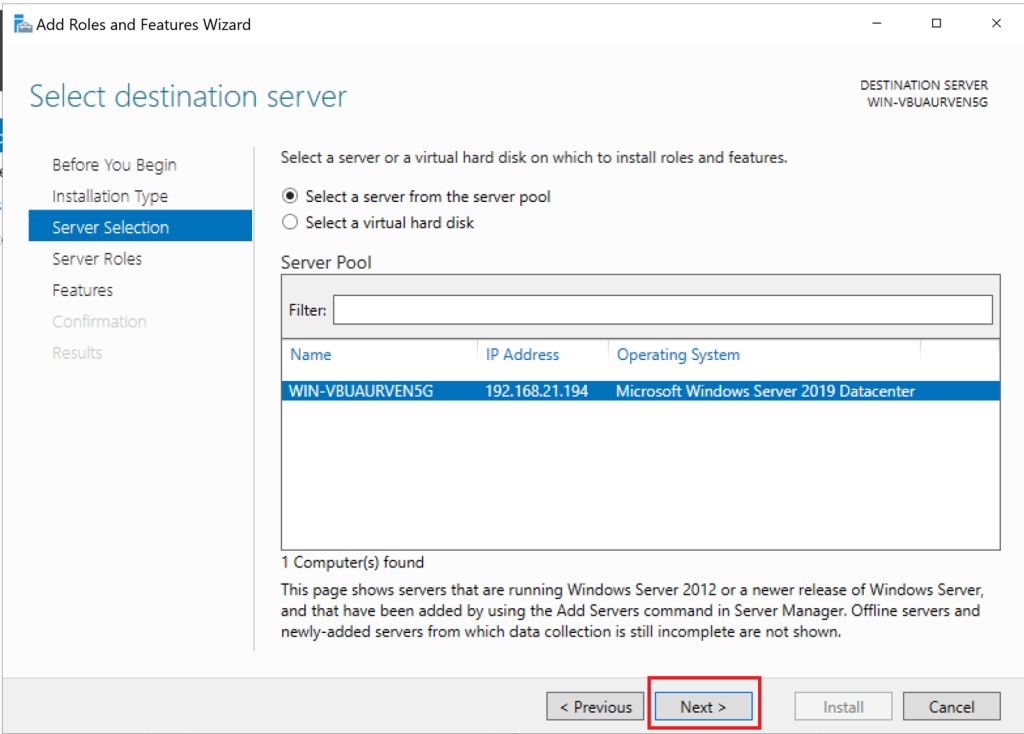
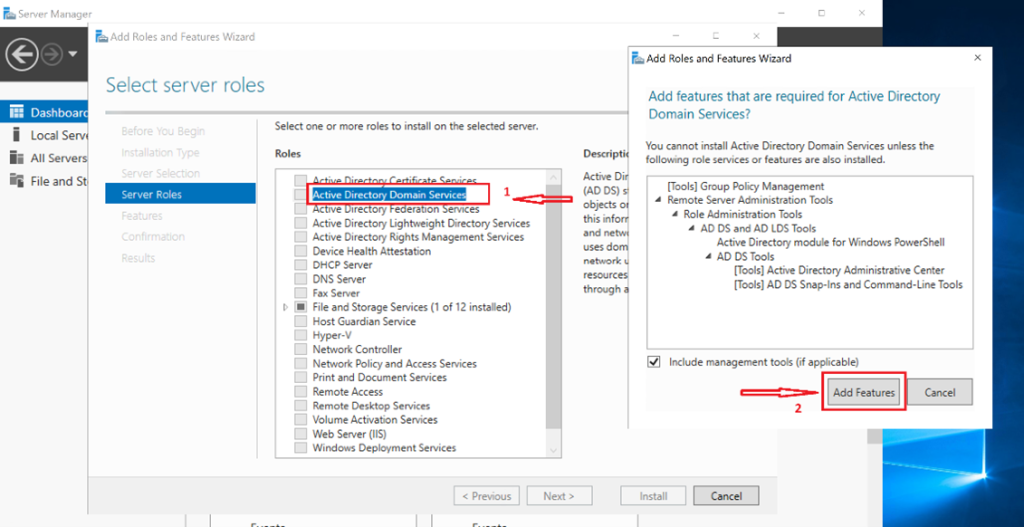
Open Server Manager → Add Roles and Features.
Select Active Directory Domain Services, include the management tools, and confirm installation.
2. Promote the Server and Create the Forest
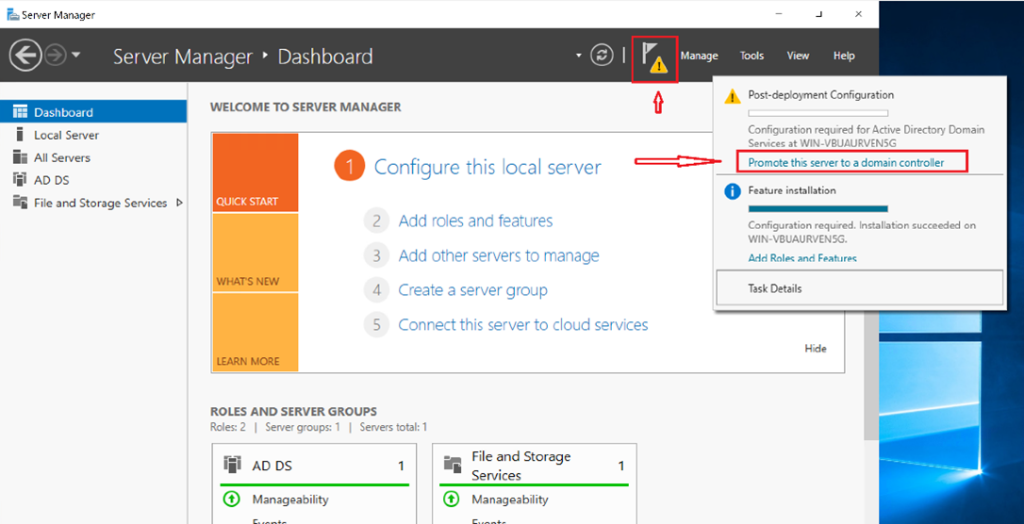
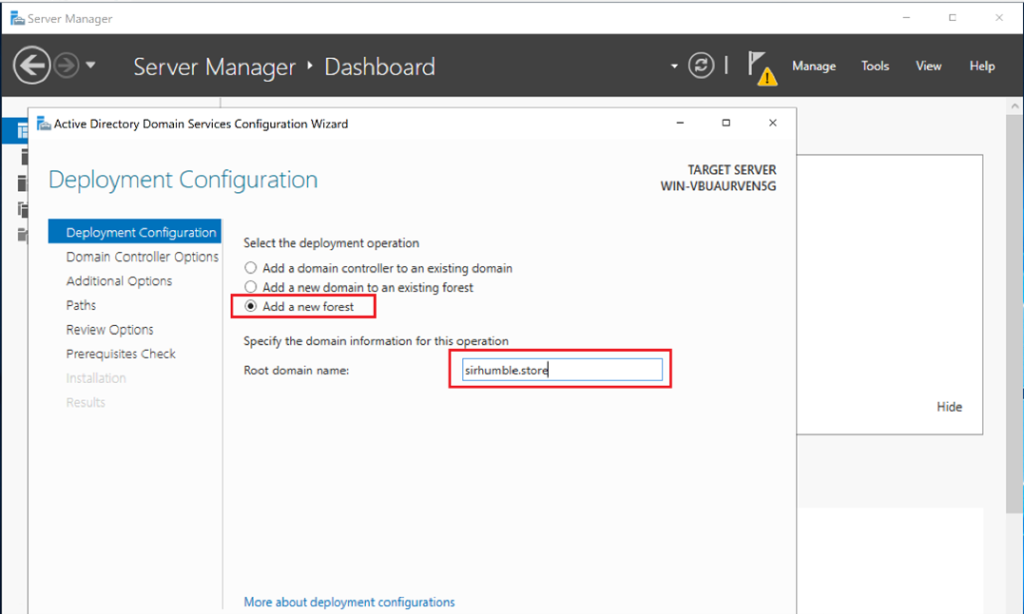
After the role installs, select Promote this server to a domain controller, then choose Add a new forest.
Enter the planned forest root domain. The screenshots use sirhumble.store; replace it with the namespace selected during your design step.
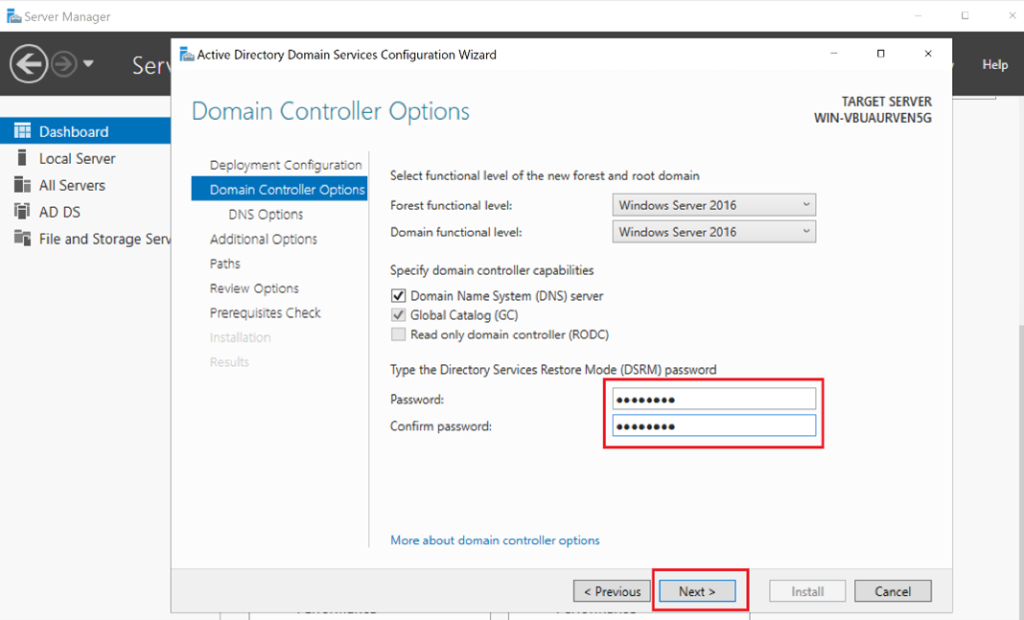
Install DNS and Global Catalog on the first DC, then set a strong, unique DSRM password for offline recovery. DSRM isn't a normal domain sign-in credential; protect and test it as part of the directory recovery process.
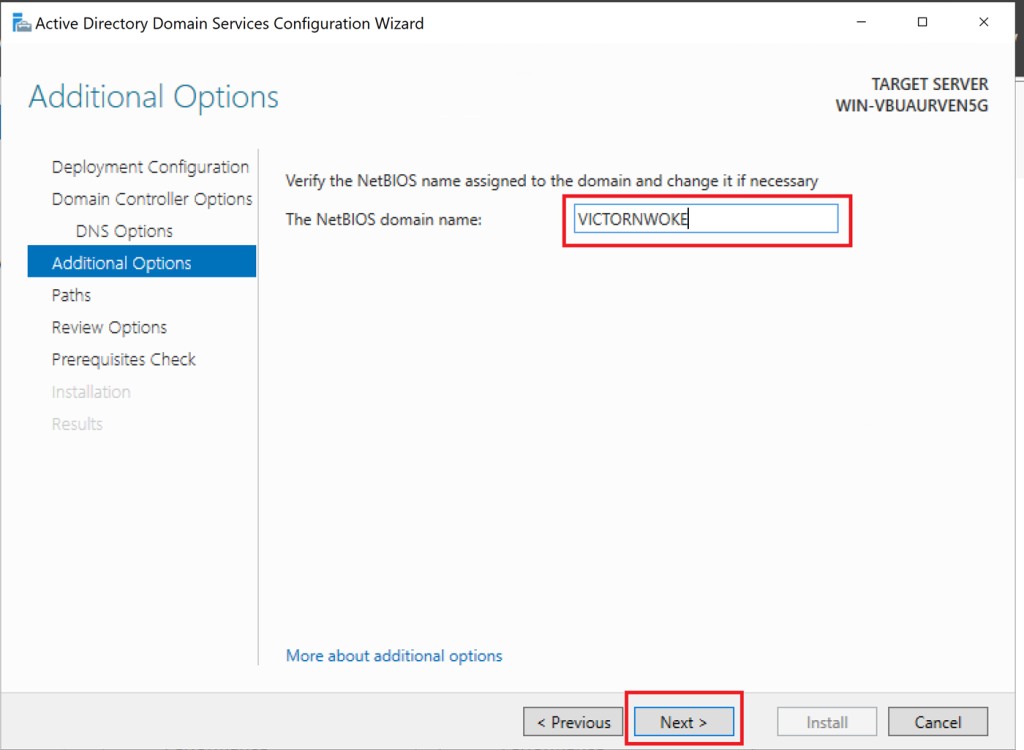
I review every prerequisite warning rather than clicking through it. Resolve name, DNS, static-addressing, and permission problems before selecting Install. The server restarts automatically after promotion.
PowerShell Alternative
The same deployment can be recorded and repeated with PowerShell. I run the forest test first, replace the example domain, and enter the DSRM password only through the secure prompt:
Install-WindowsFeature AD-Domain-Services -IncludeManagementTools

$dsrmPassword = Read-Host `
    -Prompt 'Enter the Directory Services Restore Mode password' `
    -AsSecureString

Test-ADDSForestInstallation `
    -DomainName 'ad.example.com' `
    -InstallDns `
    -SafeModeAdministratorPassword $dsrmPassword

Install-ADDSForest `
    -DomainName 'ad.example.com' `
    -InstallDns `
    -SafeModeAdministratorPassword $dsrmPassword
Don't place the DSRM password in a script, command history, transcript, or source repository.
3. Verify the First Domain Controller
- Confirm the server identifies itself as a domain controller and DNS server.
- I verify the
SYSVOLandNETLOGONshares exist. - I run
dcdiag /vand investigate failures rather than treating the command itself as proof of health. - I verify the domain's LDAP, Kerberos, and global-catalog SRV records.
- Confirm DNS can resolve both internal records and forwarded external queries.
Get-ADForest
Get-ADDomain
Get-ADDomainController -Filter *
Get-SmbShare -Name SYSVOL, NETLOGON

dcdiag /v
dcdiag /test:dns /v

Resolve-DnsName -Type SRV _ldap._tcp.dc._msdcs.ad.example.com
Resolve-DnsName -Type SRV _kerberos._tcp.ad.example.com
Replace ad.example.com with the deployed domain. A first and only DC has no replication partner, so don't claim replication has been validated yet. Replication validation belongs after adding the second domain controller.
Security and Recovery Notes
- I use separate day-to-day and privileged administrative accounts.
- Don't browse the web, install unrelated applications, or host general file shares on a domain controller.
- Apply current security baselines, updates, auditing, and endpoint protection.
- Back up system state with an AD-aware product and test authoritative/non-authoritative recovery procedures.
- Deploy at least two writable DNS-hosting domain controllers for a production domain and place them according to site and failure-domain requirements.
- A Hyper-V checkpoint isn't a substitute for a supported AD DS backup.
Why Set Up AD DS on Hyper‑V?
Deploying AD DS in a Hyper‑V environment is ideal for:
- Lab environments
- Testing Group Policy and AD configurations
- Practicing group-based authorization, delegation, and Group Policy
- Building hybrid cloud simulations
It provides a safe, isolated, and flexible environment to experiment, break things, fix them, and build confidence before touching production systems.
Benefits of AD DS in Enterprise Environments
- Centralized identity management
- Improved security through authentication and authorization controls
- Streamlined user, device, and resource management
- Foundation for services like DNS, Group Policy, and enterprise applications
AD DS is the backbone of most enterprise networks; mastering it unlocks deeper understanding of infrastructure, security, and cloud integration.
Continue by creating OUs, groups, and users, then add redundancy and real replication with the secondary domain controller lab.