Your Terraform apply is not frozen.
It may be waiting on a state lock that will never come back.
The terminal says:
Acquiring state lock. This may take a few moments...No error. No progress bar. Just a blinking cursor and a quiet little decision: kill it, wait longer, or start poking the backend.
This happened to a team during a routine pipeline migration. A GitHub Actions job was cancelled mid-apply after a second push triggered a newer run. The runner stopped, but the lock it had acquired for the shared Terraform state did not cleanly disappear before the next run started. Every apply after that queued behind a lock nobody was actively using.
That is exactly the kind of incident state locking is designed to prevent and exactly why unlocking it casually is dangerous.
If you are still building the Terraform foundation, start with Terraform Basics. If the lock is happening inside automation, pair this with CI/CD Pipelines and Secure CI/CD Pipelines.
Why Terraform Locks State
Terraform state is the map between your configuration and the real infrastructure Terraform manages.
When Terraform runs an operation that could write state, it tries to lock the state first if the backend supports locking. HashiCorp's state locking documentation explains the reason directly: locking prevents other runs from acquiring the same state and potentially corrupting it.
That lock matters because two applies against the same state can both believe they are the one valid writer.
Without locking, this is the bad shape:
- Pipeline A reads state.
- Pipeline B reads the same state.
- Pipeline A changes infrastructure and writes state.
- Pipeline B changes overlapping infrastructure from an older view and writes state.
- The state file no longer tells a clean story.
State locking is the guardrail that makes Terraform say, in effect: one writer at a time.
What Acquiring State Lock Means
This message does not mean Terraform is hung:
Acquiring state lock. This may take a few moments...
It means Terraform is waiting to acquire the backend lock before continuing.
The terraform apply command supports:
terraform apply -lock-timeout=5mThe official terraform apply docs describe -lock-timeout=DURATION as the period Terraform retries while trying to acquire a lock, unless locking has been disabled. If the timeout expires and the lock is still held, Terraform should return an error instead of waiting forever.
I do not use this as the fix:
terraform apply -lock=falseHashiCorp documents -lock=false, but also warns that disabling locking is dangerous when anyone else might run Terraform against the same workspace. In a team or CI environment, that flag is usually a way to turn a waiting problem into a state integrity problem.
Common Places Locks Live
The exact lock mechanism depends on the backend.
| Backend | Lock behavior to know |
|---|---|
| HCP Terraform / Terraform Enterprise | State locking is handled by the platform workspace. |
| S3 backend | Current Terraform S3 backend docs support native S3 lock files with use_lockfile = true; DynamoDB-based locking is documented as deprecated. |
| AzureRM backend | The azurerm backend stores state in Azure Blob Storage and supports state locking and consistency checking with Azure Blob Storage native capabilities. |
| GCS backend | The GCS backend supports state locking. |
| Local backend | Local state uses local system APIs for locking, but this is not a collaboration backend. |
Important update for AWS teams: many older Terraform guides talk only about S3 plus DynamoDB for locking. Current HashiCorp S3 backend documentation says DynamoDB-based locking is deprecated and will be removed in a future minor version. Native S3 lock files are now the documented direction for S3 backend locking.
That does not mean your existing DynamoDB-backed state instantly stops working. It means new guidance should not pretend DynamoDB locking is the future-safe default.
First: Prove What Is Holding the Lock
Before unlocking anything, prove whether another Terraform run is actually active.
I check these places first:
- CI system: GitHub Actions, Azure DevOps, GitLab CI, Jenkins, or whichever runner owns applies.
- Pull requests: another environment or branch may be applying the same workspace.
- Terraform Cloud or Enterprise workspace runs, if used.
- Local terminals: someone may have a long-running
apply,destroy,import,state, orconsolesession. - Backend lock metadata: the lock ID, operation, user, path, version, and timestamp if your backend exposes it.
Terraform's state locking docs say force-unlock should only be used to unlock your own lock when automatic unlocking failed. That is the mental model to keep: you are not overriding Terraform because you are impatient; you are cleaning up a lock you have proven is stale.
What a Lock Error Tells You
When Terraform fails to acquire a lock, the error usually includes lock information.
It may include fields like:
Lock Info:
  ID:        11111111-2222-3333-4444-555555555555
  Path:      prod/network/terraform.tfstate
  Operation: OperationTypeApply
  Who:       runner@example
  Version:   1.14.0
  Created:   2026-07-26 02:17:40 +0000 UTC
  Info: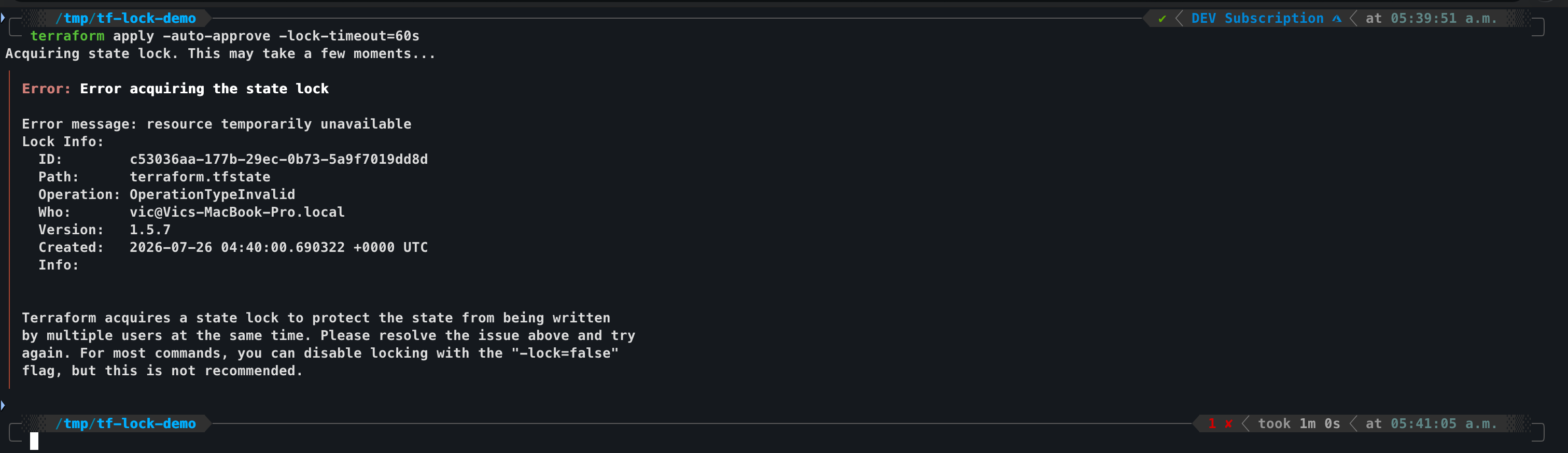
The exact fields and formatting depend on Terraform version and backend, but the important part is the lock ID.
Terraform requires that unique lock ID for force-unlock. The official docs describe the lock ID as a nonce that helps ensure the unlock targets the correct lock.
Safe Force-Unlock Checklist
I do not start with force-unlock.
I use this checklist first:
- Confirm no CI job is currently applying the same workspace.
- Confirm no engineer is running Terraform locally against the same backend key or workspace.
- I check when the lock was created.
- I check who or what acquired the lock.
- I check whether the previous run was cancelled, killed, timed out, or crashed.
- Confirm the lock ID matches the lock you intend to remove.
- Announce the unlock in the team channel if this is a shared environment.
- I run a read-only
terraform planafterward to confirm Terraform and the real infrastructure still agree.
Only then:
terraform force-unlock <LOCK_ID>For non-interactive automation, Terraform also supports:
terraform force-unlock -force <LOCK_ID>That removes the confirmation prompt. It does not make the operation safer.
HashiCorp's force-unlock command reference is clear that the command does not modify infrastructure. That is true, but incomplete as an operational comfort. The risk is what happens after unlocking if another apply was still active: you can allow multiple writers against the same state.
CI Guardrails That Prevent Stuck Locks
The better fix is upstream in the pipeline.
I use a clear lock timeout:
terraform apply -auto-approve -lock-timeout=10mThis gives a real Terraform run time to finish, but makes a stale lock visible as a failed job instead of a mystery hang.
In GitHub Actions, add workflow-level concurrency so two applies for the same environment do not run together:
concurrency:
  group: terraform-${{ github.ref }}-production
  cancel-in-progress: false
For apply jobs, cancel-in-progress: false is usually safer than auto-cancelling an active apply. A plan job can often be cancelled freely. An apply job is mutating infrastructure and writing state; treat it differently.
Also log enough context to investigate a lock later:
terraform version
terraform workspace show
terraform init -input=false
terraform apply -input=false -auto-approve -lock-timeout=10m
If a lock error appears, preserve the job log. It may contain the lock ID you need to investigate safely.
Backend Examples
For newer S3 backend locking, HashiCorp documents use_lockfile = true:
terraform {
  backend "s3" {
    bucket       = "example-terraform-state"
    key          = "production/network/terraform.tfstate"
    region       = "us-east-1"
    use_lockfile = true
  }
}
In addition to access to the state object, the Terraform identity needs s3:GetObject, s3:PutObject, and s3:DeleteObject on the corresponding lock-file object. For this example, that object is production/network/terraform.tfstate.tflock.
For Azure Storage state, the azurerm backend uses Azure Blob Storage:
terraform {
  backend "azurerm" {
    use_azuread_auth     = true
    tenant_id            = "00000000-0000-0000-0000-000000000000"
    storage_account_name = "examplestate"
    container_name       = "tfstate"
    key                  = "production/network.terraform.tfstate"
  }
}
I do not hardcode backend credentials in configuration. HashiCorp's backend documentation warns that backend config values can be written into local .terraform files and plan files. I use environment variables or your CI identity model instead.
What Not to Do
I avoid these shortcuts:
- I do not delete a backend lock manually before confirming the active run is dead.
- I do not run
terraform apply -lock=falsein CI to "get past" a lock. - I do not run
force-unlockfrom the wrong workspace or backend directory. - I do not ignore a lock timeout and immediately rerun the same failed pipeline.
- I do not apply a saved plan if the backend configuration or credentials captured in that plan are stale.
- I do not treat state as a normal file you can edit by hand.
Terraform gives you state commands for controlled state operations. It does not want you editing raw state JSON directly.
A Practical Incident Runbook
When terraform apply appears stuck on a lock:
# 1. Wait long enough to avoid interrupting a healthy apply.
terraform apply -lock-timeout=10m

# 2. If it fails, save the lock info from the error.
# Look for ID, Path, Operation, Who, Version, Created.

# 3. Check CI for active apply jobs against the same environment.

# 4. Check with the team before unlocking shared production state.

# 5. If the lock is stale and you own the cleanup:
terraform force-unlock <LOCK_ID>

# 6. Re-check state against real infrastructure before applying again.
terraform plan
The most important step is not the command. It is proving that the lock is stale.
Final Takeaway
Terraform's state lock is not the enemy.
It is the thing preventing two writers from damaging the same source of truth.
When a pipeline cancellation leaves a stale lock behind, terraform force-unlock is the cleanup tool, not the first reflex. Confirm the run is dead, confirm the lock ID, unlock only the stale lock, then fix the CI behavior that created the incident.
Full walkthrough on building a safe Terraform CI pipeline, lock handling included, is up on CloudTechByVictor.com. Worth a read before your next migration, not after the pipeline hangs.