In this lab, I implemented key Group Policy configurations to standardize system behavior, improve user experience, and strengthen security awareness across all domain-joined devices.
The configuration focuses on:
- Enforcing a consistent and professional desktop environment
- Preventing unauthorized or accidental system shutdowns
- Displaying a clear security and legal notice to users before sign-in
All policies were deployed centrally using Group Policy Management on Windows Server 2019, ensuring consistent application across both on-site and hybrid environments.
The examples intentionally mix User Configuration and Computer Configuration. They should usually be separate GPOs with clear names, owners, scope, change history, and rollback steps. A GPO linked to an OU affects only in-scope users or computers that have permission to apply it; “domain-joined” doesn't automatically mean every device receives the policy.
Lab Overview
Environment
- Active Directory Domain Services (AD DS)
- Group Policy Management Console (GPMC)
- Domain-joined Windows client machines
Policies Implemented
- Desktop background enforcement
- Power button behavior restriction
- Interactive logon message (legal notice)
Step-by-Step Lab Tutorial on Windows Server
Step 1: Change Desktop Background for All Users
Purpose: Ensure every user logs into a standardized, branded desktop environment.
Steps:
Open Server Manager
Navigate to Tools → Group Policy Management
I create or edit a GPO (example: CompanyDesktopBackground)
Link the GPO to the domain or relevant OU
Prefer the relevant user OU over the domain root. I use a pilot security group or OU first, and verify security filtering and inheritance before broad rollout.
Navigate to: User Configuration → Administrative Templates → Desktop → Desktop Wallpaper
Enable Desktop Wallpaper
Set the image path (UNC recommended):
\\DC01\Wallpapers\bg.jpg
In production, use a resilient file-service path such as a DFS namespace rather than making every sign-in depend on one domain controller. Grant users read access to both the SMB share and NTFS file, keep the image small, and test sign-in when the file server or WAN is unavailable. Don't host general content on a DC merely for convenience.
Choose a style such as Fill or Stretch
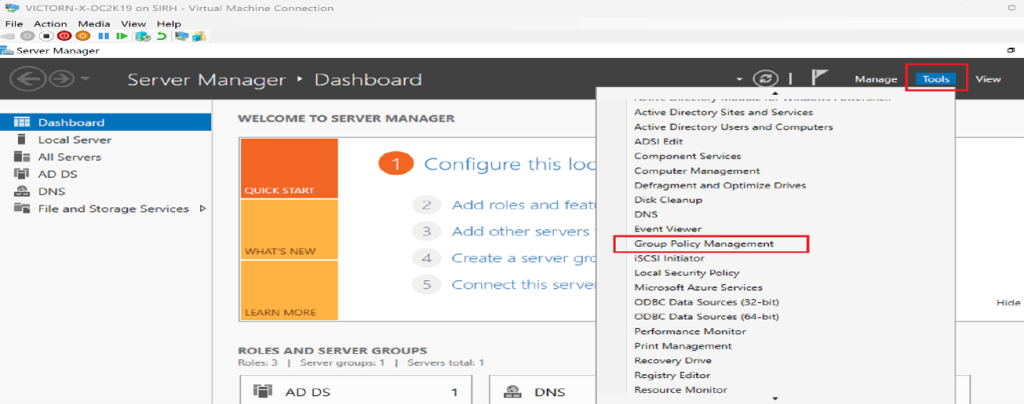
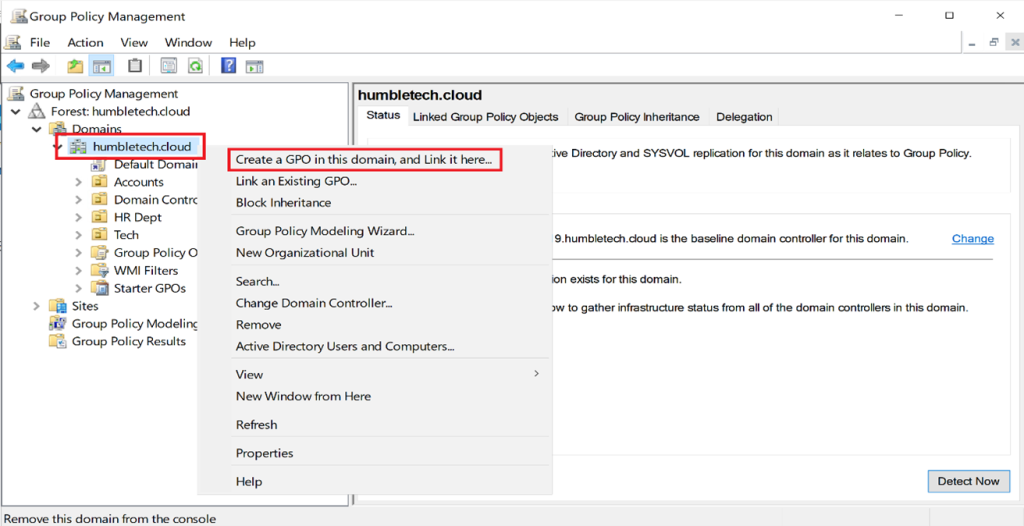
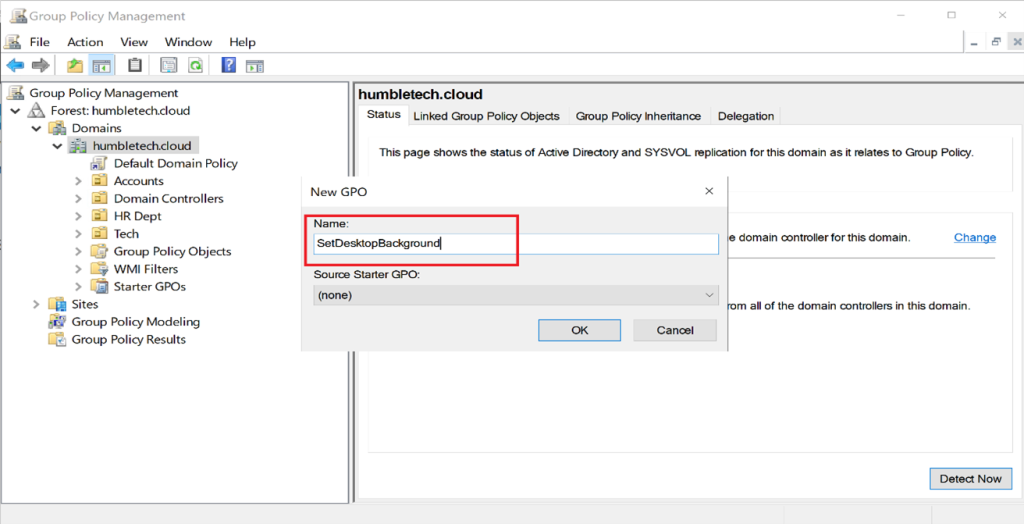
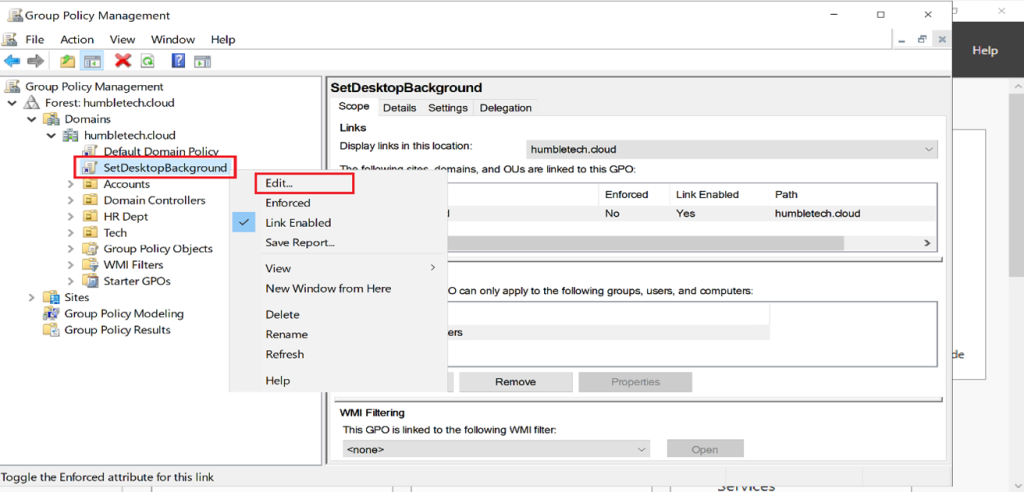
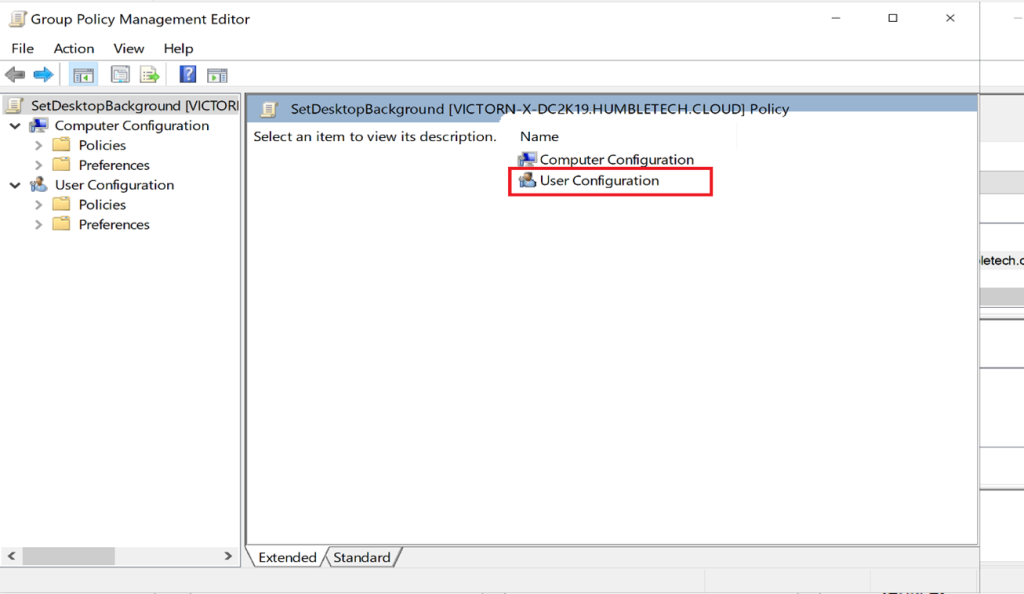
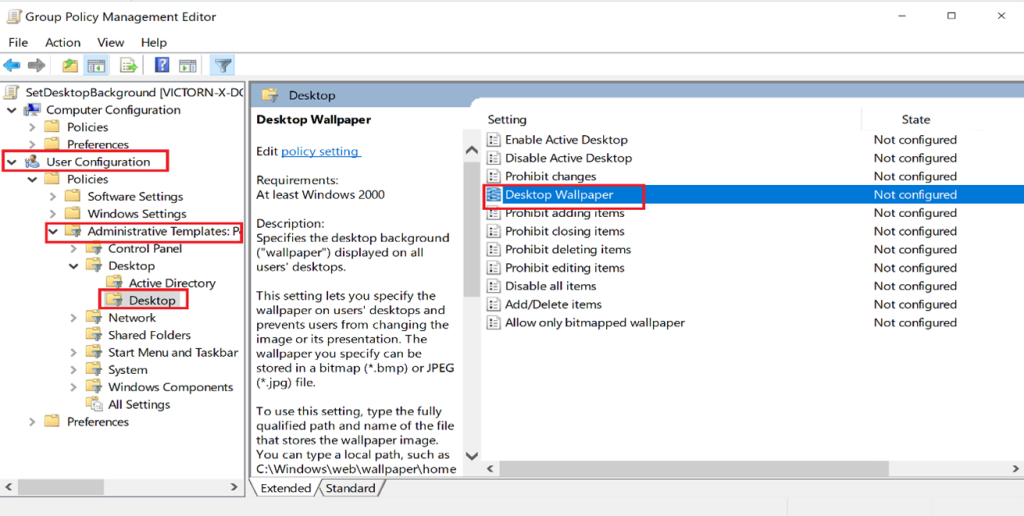
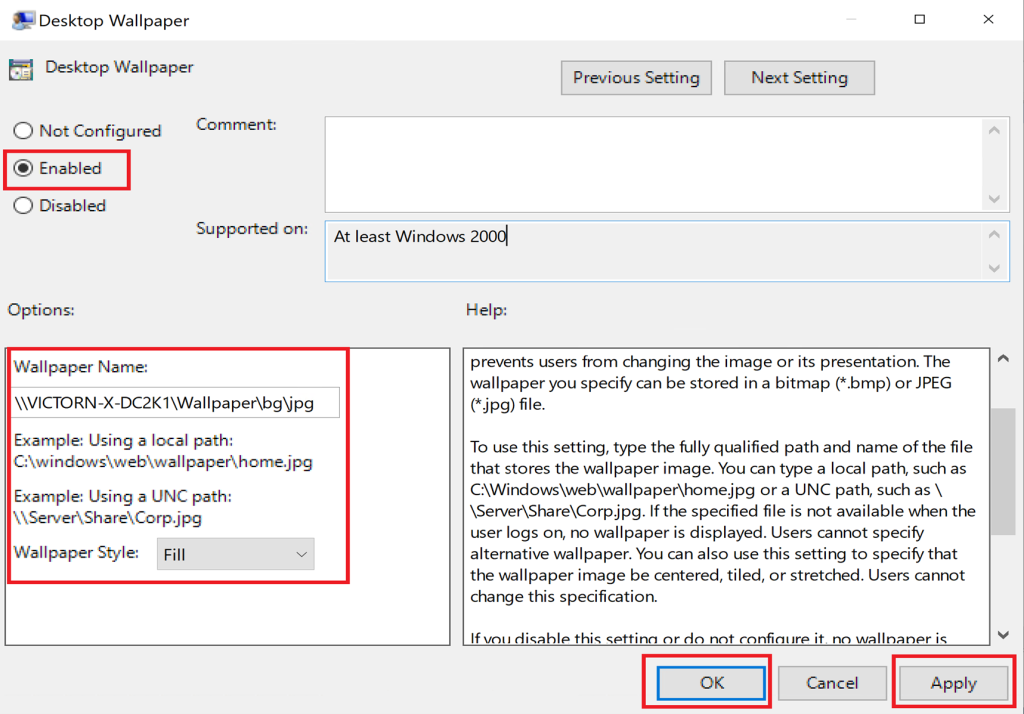
Result: All domain users receive a consistent, professional desktop background at logon.
Step 2: Disable or Restrict Power Button Behavior
Purpose: Reduce accidental physical power-button actions that could disrupt supported workstation scenarios.
Steps:
I create a new computer-targeted GPO, for example Workstations-PowerButtonControl.
Link it to the domain or workstation OU
Navigate to: Computer Configuration → Administrative Templates → System → Power Management → Button Settings
Configure the applicable Select the Power Button Action policy for plugged-in and, where relevant, battery operation. Available actions depend on the Windows version and policy definition; select the value that matches the device class and operational requirement rather than assuming “disable shutdown” is available or appropriate everywhere.
Power-button policy doesn't prevent users with sufficient rights from shutting down through other interfaces or commands. Treat it as a usability and availability setting, not a security boundary.
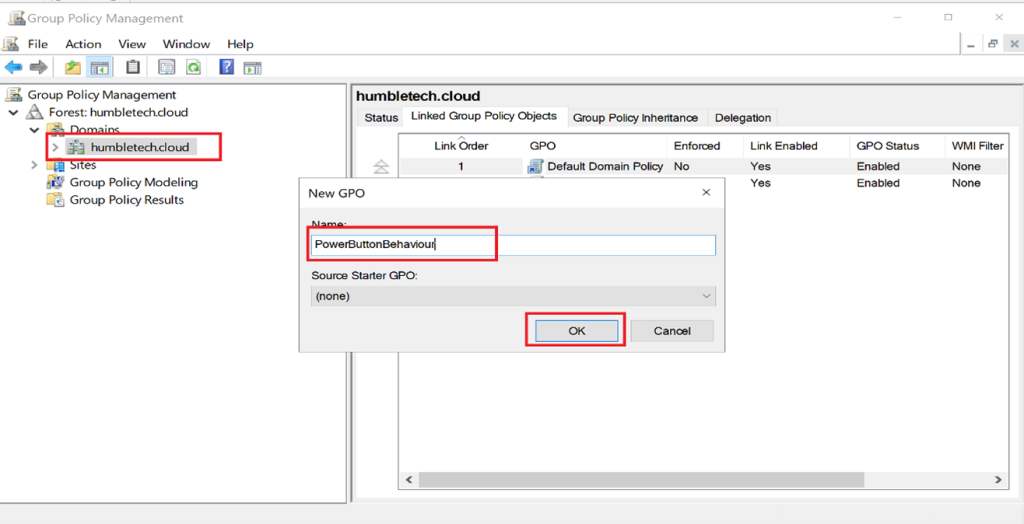
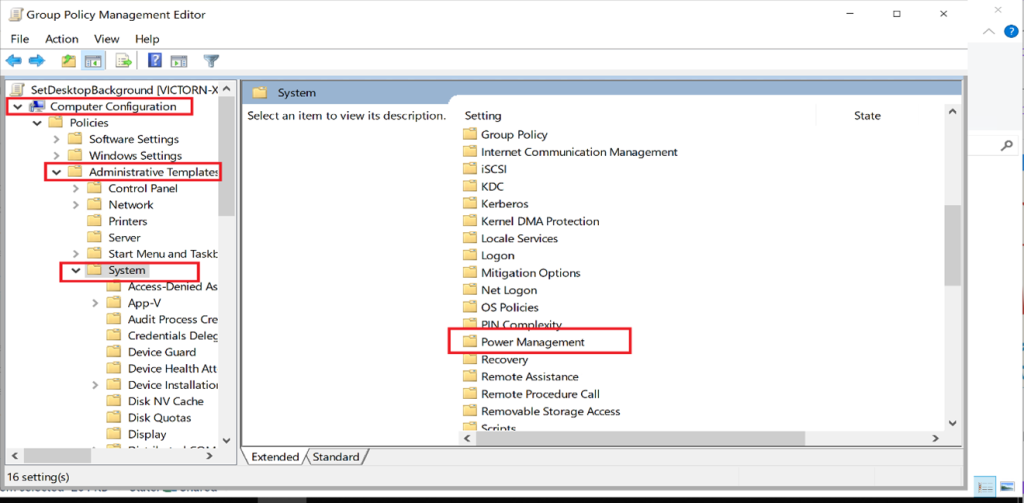
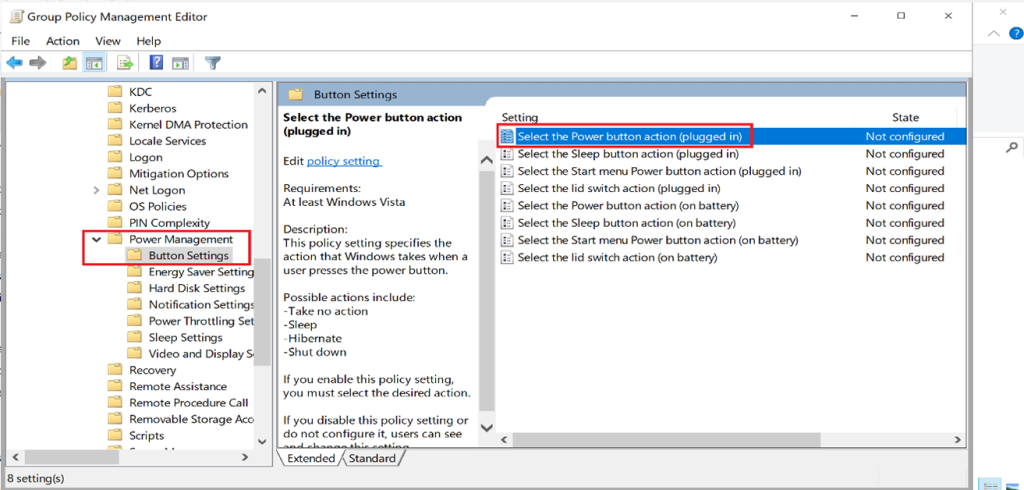
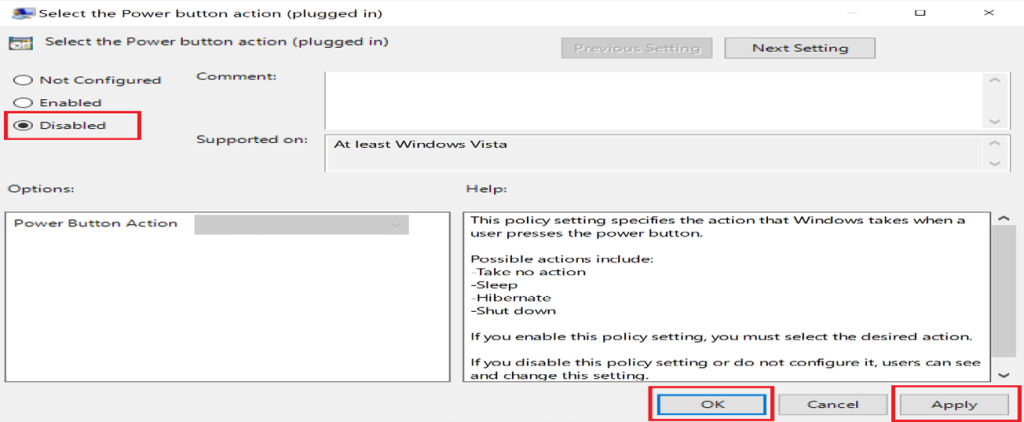
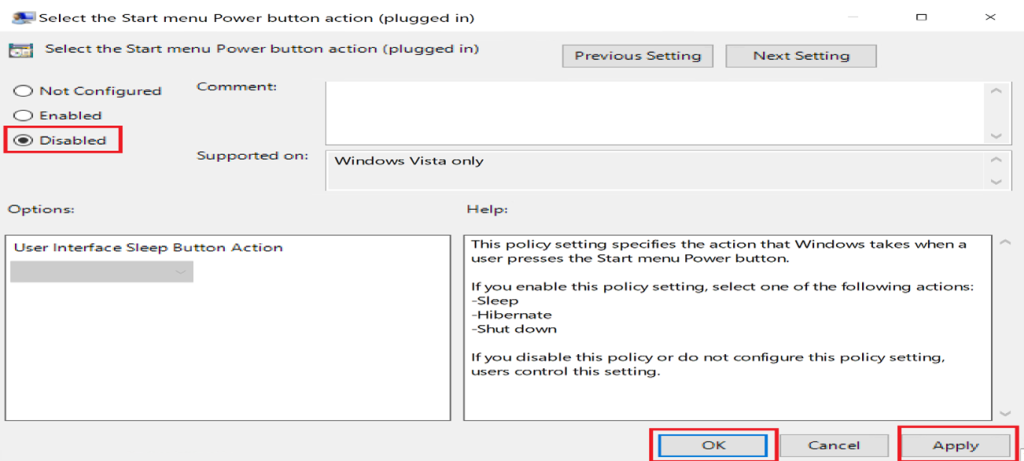
Result: Improved workstation availability and reduced downtime risks.
Step 3: Enforce Legal Notice / Logon Banner
Purpose: Display security warnings or compliance notices before user authentication.
Steps:
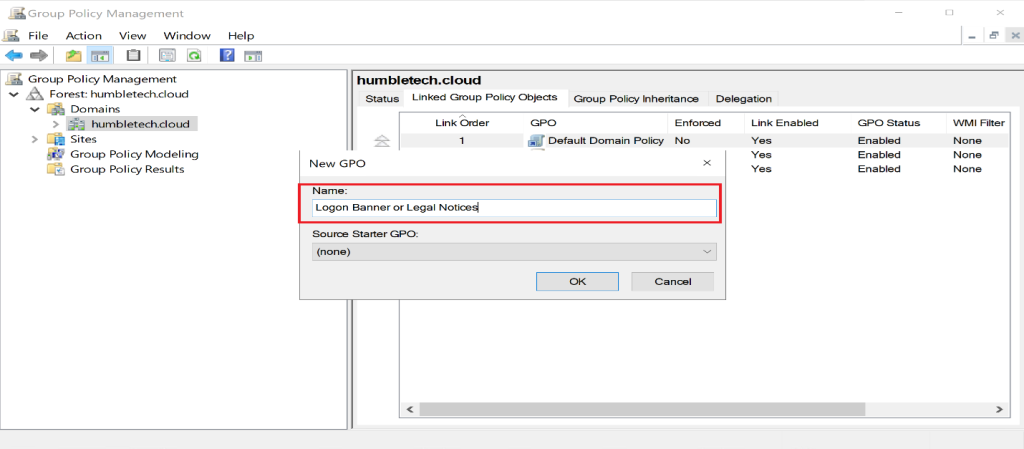
I create a computer-targeted GPO, for example Workstations-LegalNotice.
Link it to the domain
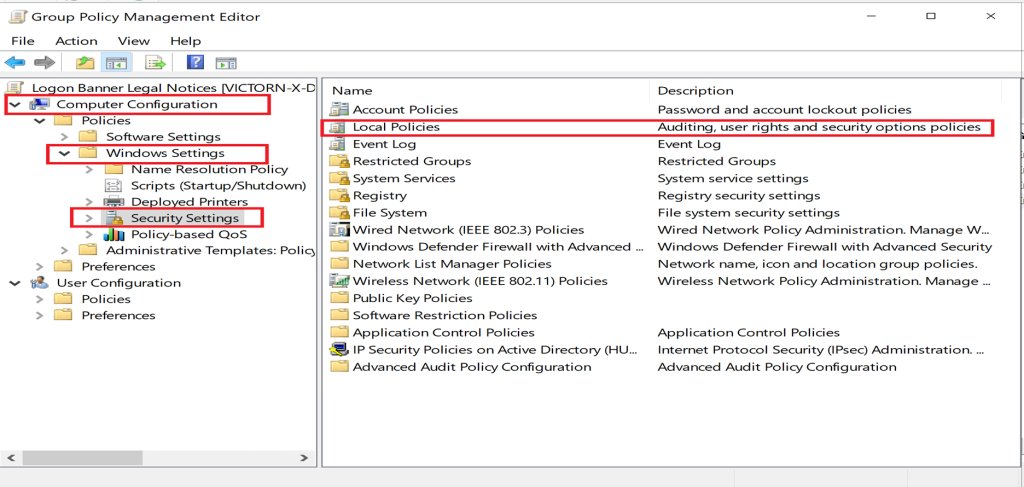
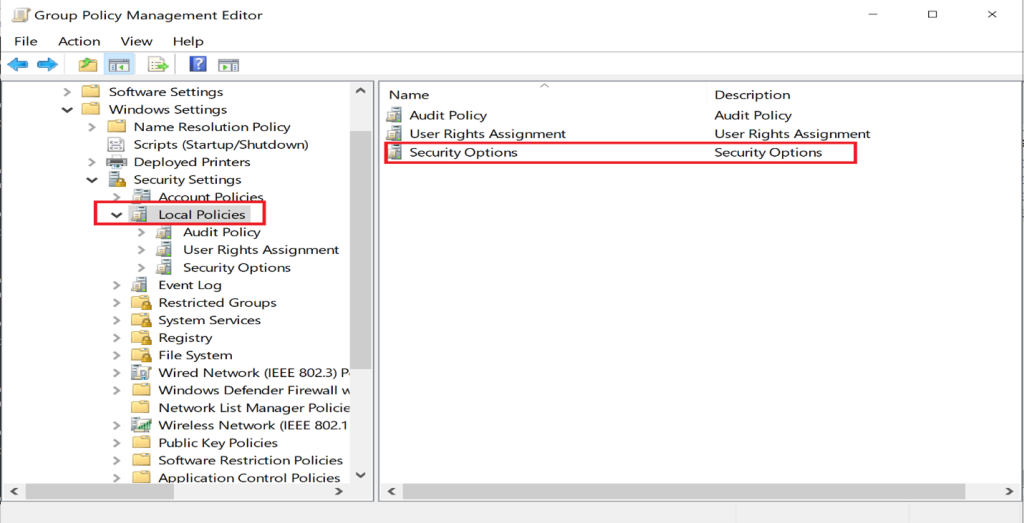
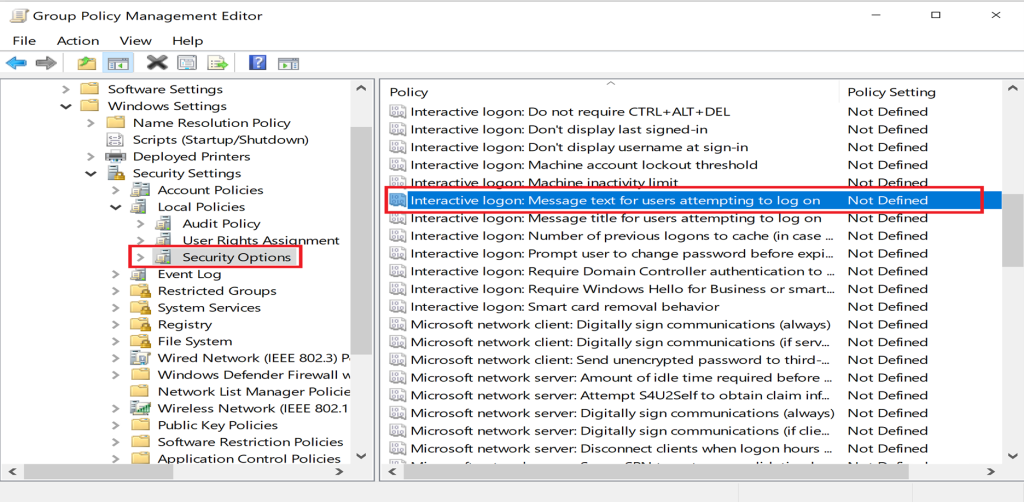
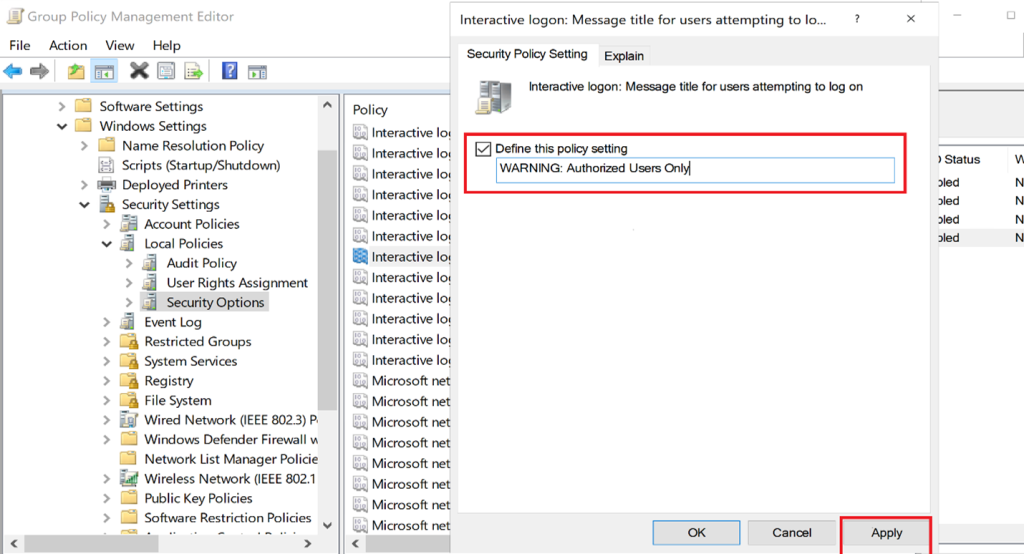
Navigate to: Computer Configuration → Windows Settings → Security Settings → Local Policies → Security Options
Configure:
Interactive logon: Message title
Interactive logon: Message text
Have legal, HR, privacy, security, and accessibility stakeholders approve the exact text. A logon notice can communicate acceptable-use or monitoring terms, but the presence of a banner doesn't itself create compliance or legal sufficiency.
Log in to a domain-joined client to verify
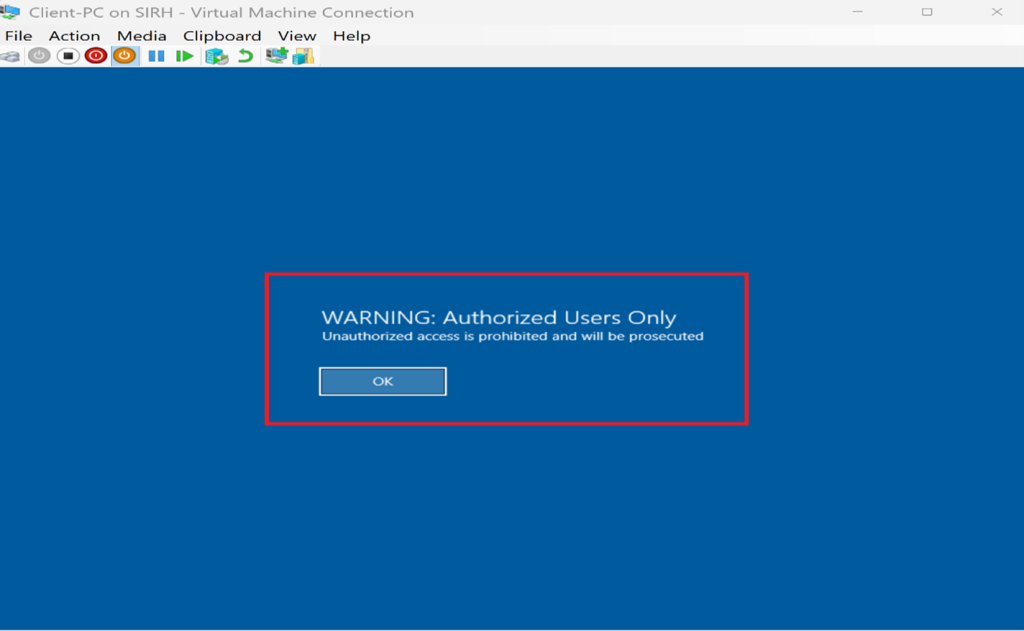
Result: Users receive a clear security reminder before accessing corporate systems.
I enhanced the domain environment's operational and security posture by successfully configuring and deploying these Group Policy settings.
- The desktop background policy ensured that every domain-joined system displayed standardized, branded wallpaper, reinforcing organizational identity and maintaining a clean, professional interface.
- The power button action policy prevented unauthorized or accidental shutdowns, reducing system downtime risks and maintaining greater control over workstation availability.
- The interactive logon message policy provided a clear, customized security disclaimer and organizational notice at every logon screen, promoting user awareness and supporting compliance requirements.
Step 4: Apply and Validate Policies
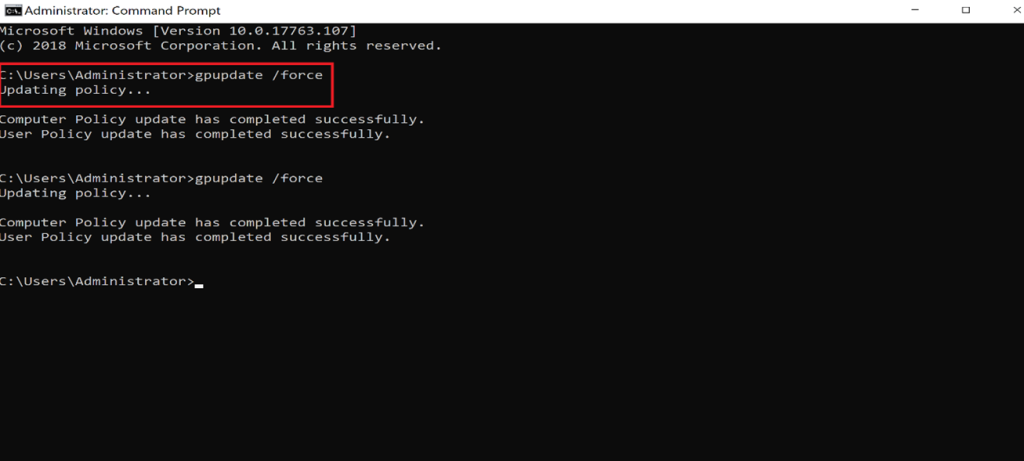
I run the following commands on a pilot domain client:
gpupdate /force
gpresult /h "$env:TEMP\workstation-policy.html"
Optional validation tools:
rsop.mscgpresult /r- Group Policy Results in GPMC for remote/resultant analysis
Validate each policy in the correct security context:
- Sign in as an in-scope standard user and confirm the wallpaper applies.
- Sign in as an out-of-scope user and confirm it doesn't apply.
- Restart an in-scope workstation and test the physical power-button action.
- Confirm the logon title and text appear before authentication on the intended device editions.
- I test offline or WAN-disconnected behavior for the wallpaper path.
- I review the generated
gpresultreport for winning GPOs, denied GPOs, filtering, loopback, WMI filters, and processing errors.
If settings don't apply, troubleshoot in order: object location, link status, inheritance/block/enforced behavior, security filtering, WMI filters, AD and SYSVOL replication, DNS, client connectivity, and the GroupPolicy operational event log.
Why This Matters
These Group Policy configurations help organizations achieve the following:
✔️ Consistent user experience ✔️ Centralized workstation control ✔️ Improved security posture and compliance ✔️ Reduced manual configuration for IT teams ✔️ Clear security communication at every logon
Microsoft confirms that Group Policy provides centralized management and enforcement of user and computer settings in Active Directory environments, making it a foundational enterprise control mechanism.
Group Policy is powerful, but broad claims such as “improved security posture and compliance” require evidence. I record the requirement each setting satisfies, test the effective configuration, monitor policy drift, and confirm whether Group Policy or modern device management is authoritative for hybrid and internet-only endpoints.
Outcome and Impact
By successfully deploying these Group Policy settings, I enhanced the operational consistency and security posture of the domain environment:
- Desktop Background Policy Reinforced organizational branding and ensured a clean, uniform user interface.
- Power Button Policy Reduced risks of accidental shutdowns and improved workstation uptime.
- Logon Message Policy Promoted security awareness and supported compliance requirements.
This lab demonstrates how centralized policy enforcement simplifies administration while improving reliability and security across enterprise environments.
Change and Rollback Plan
- Back up the GPO before a material edit and record the change owner.
- Change one logical control at a time so the cause of a regression is clear.
- Pilot on representative Windows versions and device types.
- Define rollback as unlinking or disabling the specific setting, not deleting an entire GPO without understanding dependencies.
- I verify AD and SYSVOL replication before diagnosing clients at remote sites.
- I remove obsolete GPOs and filters through controlled change management to prevent policy sprawl.
I use the domain-join guide to prepare a test client, and compare the scoping and validation approach with the removable-storage restriction lab.